Basic Vector Processing & Analysis
BEN HUR S. PINTOR
Basic Vector Processing & Analysis
by Ben Hur S. Pintor
version 2020.09
This work and its contents by Ben Hur S. Pintor is licensed under a Creative Commons Attribution-NonCommercial-ShareAlike 4.0 International License.
You are free to:
Share — copy and redistribute the material in any medium or format
Adapt — remix, transform, and build upon the material
Under the following terms:
Attribution — You must give appropriate credit, provide a link to the license, and indicate if changes were made. You may do so in any reasonable manner, but not in any way that suggests the licensor endorses you or your use.
NonCommercial — You may not use the material for commercial purposes.
ShareAlike — If you remix, transform, or build upon the material, you must distribute your contributions under the same license as the original.
Other works (software, source code, etc.) referenced in this work are under their own respective licenses.
Geospatial Generalist. Open Stuff Advocate. Datactivist + Maptivist.
Ben Hur is a free and open stuff advocate based in The Philippines who likes to work at the intersections of the geospatial, data, development, and openness fields. He received his Bachelor’s degree in Geodetic Engineering from the University of the Philippines and, at the time of this writing, is working towards his Master’s degree in Geomatics Engineering with a specialization in GeoInformatics. His first experience with QGIS was with version 1.5 Tethys in 2010 but he started using it consistently in 2012 with version 1.8 Lisboa.
He is an alumnus of the School of Data Fellowship and Data Expert Programme and has provided training, support, and consulting services on data literacy and free and open sources software for geospatial (FOSS4G) applications such as QGIS, GRASS, and GeoNode to individuals, private corporations, and organizations.
In 2019, he established BNHR (https://bnhr.xyz) as a way to advocate for open data and open source while helping others create sustainable and beneficial solutions to their spatial and data problems using open technologies like QGIS. He is a QGIS Certified Instructor and currently the only QGIS Sustaining Member in the Philippines.
He is an active member of the open mapping community in the Philippines and regularly organizes, supports, and volunteers for activities such as Pista ng Mapa, MaptimeDiliman, and local Open Data Day events.
Learn more about him at https://bnhr.xyz.
Standing on the shoulders of giants.
This workbook is an ever evolving piece of work that reflects my learnings and realizations over the years. The information provided here consists of my own experiences and those that I’ve gathered from the experiences of others from whom I have taken inspiration.
The names of everyone I’ve learned from over the years may be too many to mention but I would like to acknowledge the QGIS Project and its volunteers for the Official QGIS Documentation and User Guide and the local and global FOSS4G and QGIS communities among the many inspirations and resources that I had in creating this workbook.
Basic Vector Processing & Analysis 0
What you should already know 6
Exercise 1: Merge the Luzon, Visayas, and Mindanao polygon layers to create a single Philippines polygon layer 7
Exercise 2: Dissolving the merged provincial polygon layer to create a regional polygon layer 9
Exercise 3: Reprojecting a vector from one CRS to another 11
Exercise 4: Splitting the regional polygon layer into individual region polygons 14
Exercise 5: Load a primary roads and schools from OSM 15
Exercise 6: Clipping the primary roads and schools vector to the province of Albay 16
Exercise 7: Creating a 5km buffer around the schools and road layers 17
Exercise 8: Find areas within 5km of a POI and a road. 19
Exercise 9: Creating a simple model with the graphical modeler 22
Generating random points inside polygons 28
Exercise 10: Generate random points inside the PHL_municities_Albay layer 28
Exercise 11: Create a centroid layer of the PHL_municities_Albay layer 30
Find the points from one layer that are nearest to each point from another layer 31
Exercise 12: Voronoi polygons 31
Exercise 13: Join attributes by nearest 33
Exercise 14: Generating grids in QGIS 36
Exercise 15: IDW Interpolation 38
Exercise 16: Contours from points 39
Vector to raster conversion 41
Exercise 17: Converting the contour polygon to a raster 41
This workbook is designed to introduce you with processing algorithms for working with vectors in QGIS. By the end of the workbook, you should know: how to merge, split, and reproject vectors; create buffers, clips, intersections, etc; create grids and generate random points; create a simple model; and convert a raster to a vector. |
Since this is a beginner workbook, no previous knowledge of GIS or QGIS is required. Other learning resourcesOfficial QGIS Documentation (QGIS 3.10) Official QGIS Documentation (latest, QGIS 3.16) BNHR Facebook & Twitter & YouTube Free and Open Source GIS Ramblings by Anita Graser Klas Karlsson’s Youtube channel QGIS User Group Philippines Facebook Page Geographic Information Science Philippines Facebook Page |
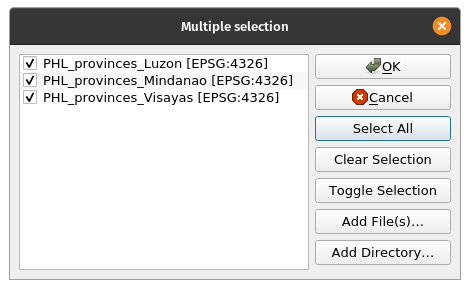
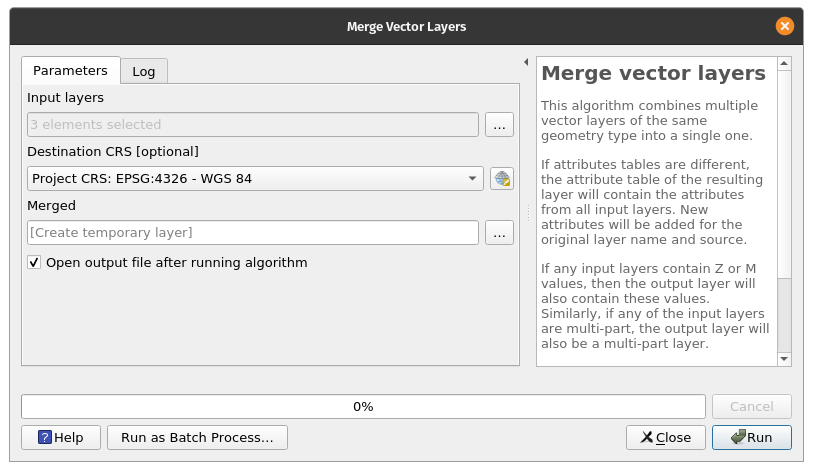
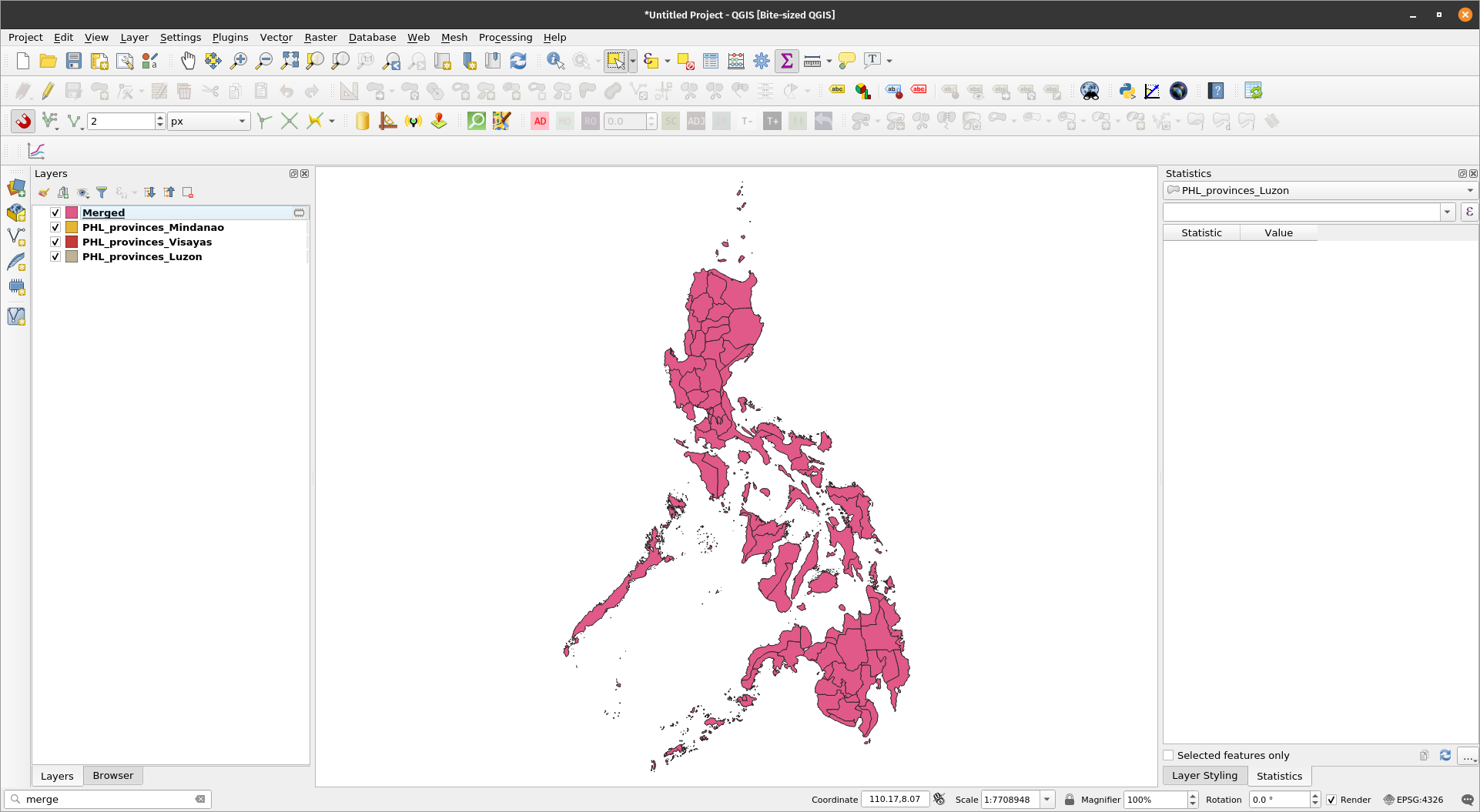
There are a variety of algorithms for working with vectors that can be found in QGIS’s built-in Processing provider. Aside from the core QGIS processing algorithms, QGIS also has access to algorithms provided by other processing providers such as applications like GRASS, SAGA, Orfeo Toolbox and processing plugins such as Whitebox Tools. QGIS algorithms can also be extended through the use of Python and R. Merging vectorsMerging vectors is a common vector operation that combines several vector layers into one vector layer. This is useful when you want to create a larger dataset from multiple smaller datasets. The Merge vector layers algorithm of QGIS combines multiple vector layers of the same geometry type into a single one. If attributes tables are different, the attribute table of the resulting layer will contain the attributes from all input layers. New attributes will be added for the original layer name and source. Exercise 1: Merge the Luzon, Visayas, and Mindanao polygon layers to create a single Philippines polygon layer
| |
| |
If you open the attribute table of this layer, it should have the same attributes as the other 3 layers. Notice also that this layer is a layer in memory or temporary layer. By default, the outputs of processing algorithms are temporary layers. | |
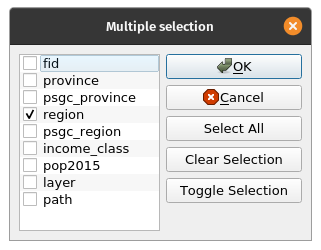
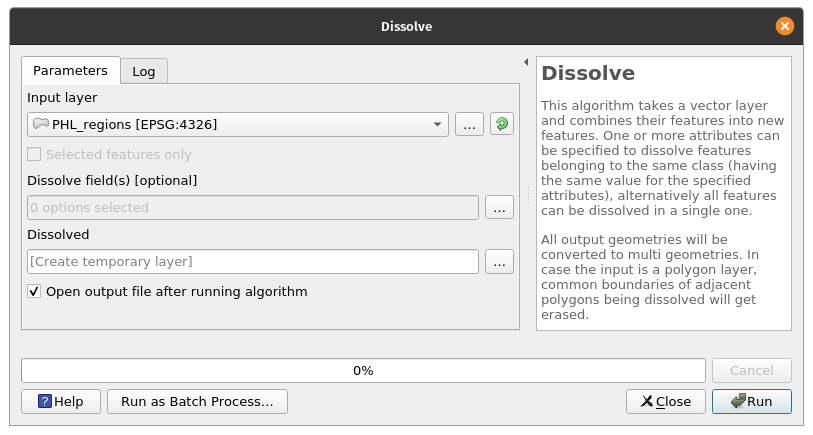
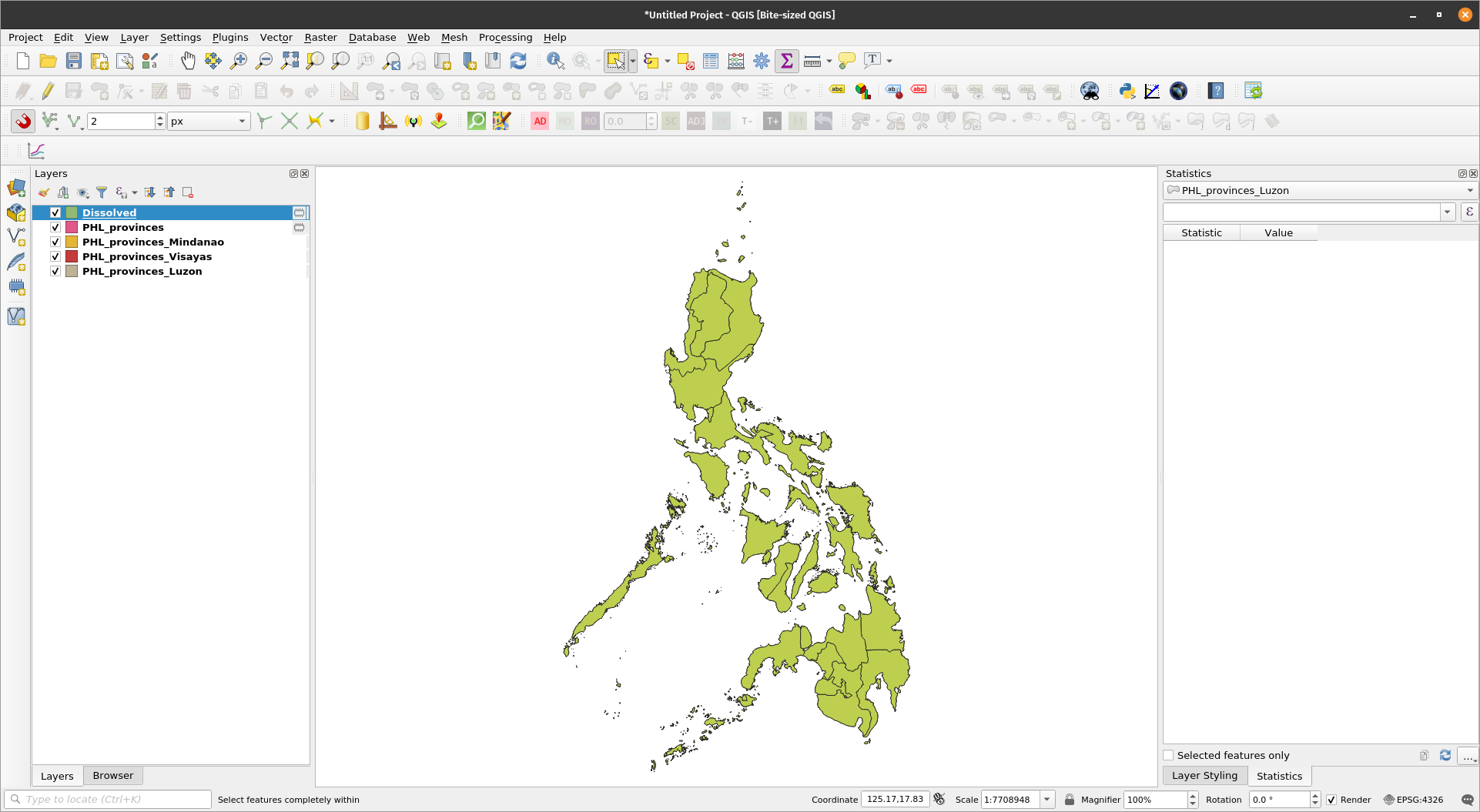
Dissolving vectorsThe act of dissolving layers involves merging or combining features (geometries) based on their attributes. The Dissolve algorithm in QGIS Processing takes a vector layer and combines their features into new features. One or more attributes can be specified to dissolve features belonging to the same class (having the same value for the specified attributes), alternatively all features can be dissolved in a single one. All output geometries will be converted to multi geometries. In case the input is a polygon layer, common boundaries of adjacent polygons being dissolved will get erased. Exercise 2: Dissolving the merged provincial polygon layer to create a regional polygon layerFor this exercise, we would like to create a regional polygon layer by dissolving the PHL_provinces layer based on its region or psgc_region attributes.
| |
If you open the attribute table of the PHL_regions layer, you might notice that there are still province and psgc_province attributes that don’t provide useful information (i.e. the features now correspond to regions and not provinces). You may delete or remove these attributes. At this point, you may want to save your work as a project (CTRL + S) and use the Memory Layer Saver plugin to make your layers in memory persistent or export your PHL_provinces and PHL_regions provinces as vector files (e.g. as geopackage or geojson). | |
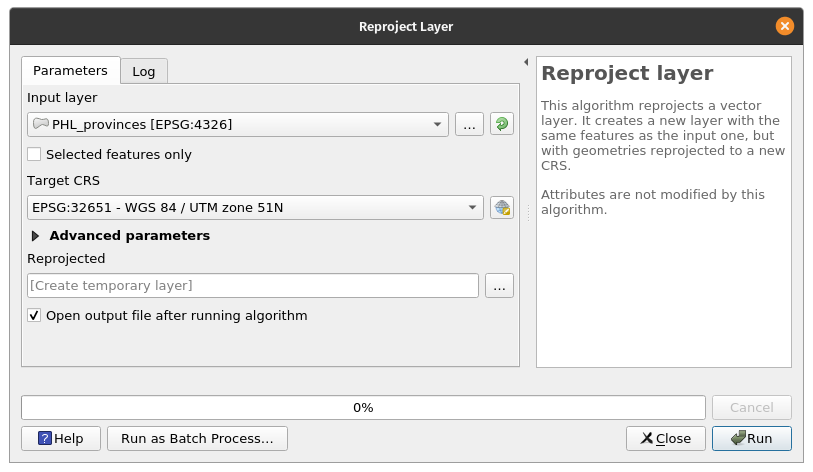
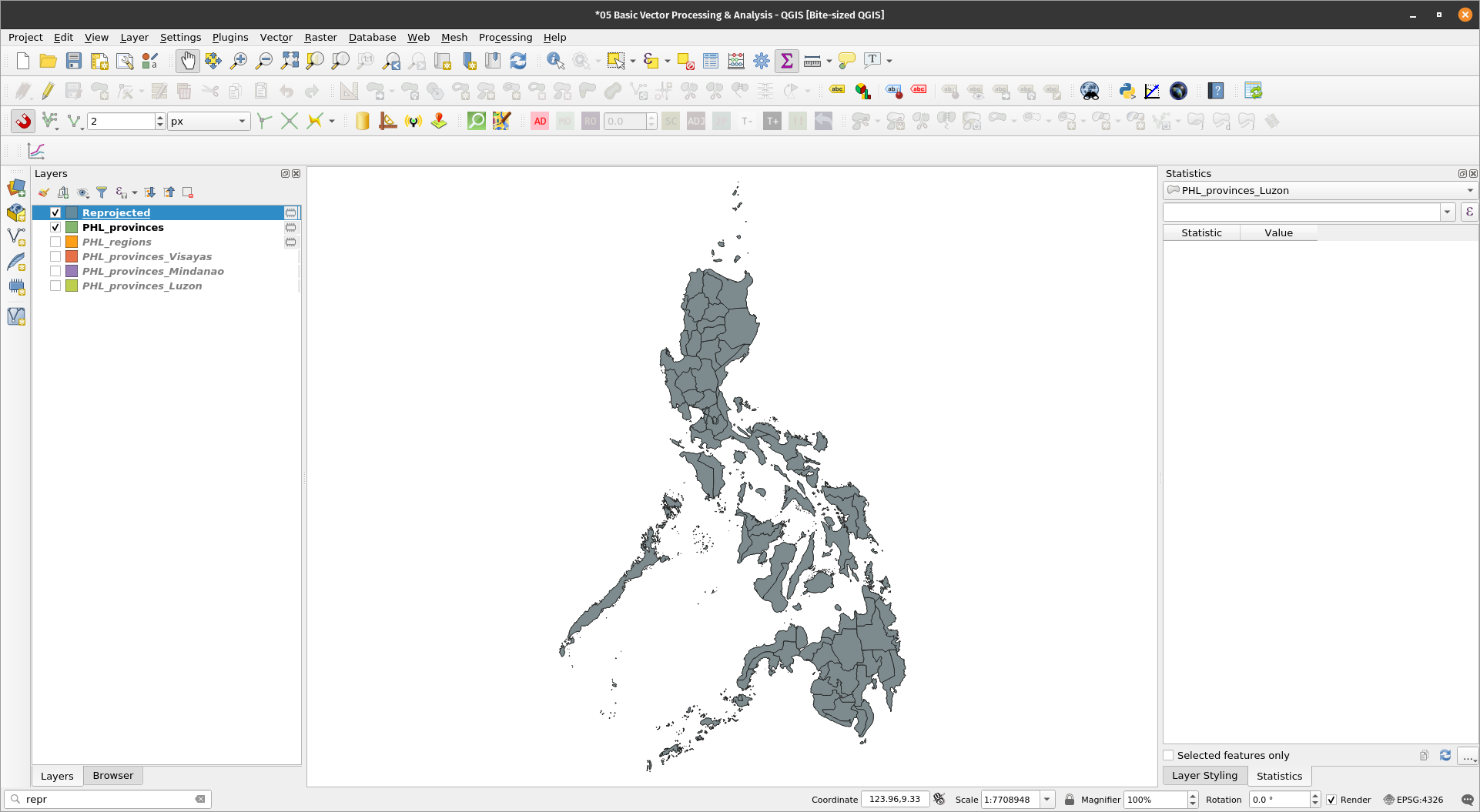
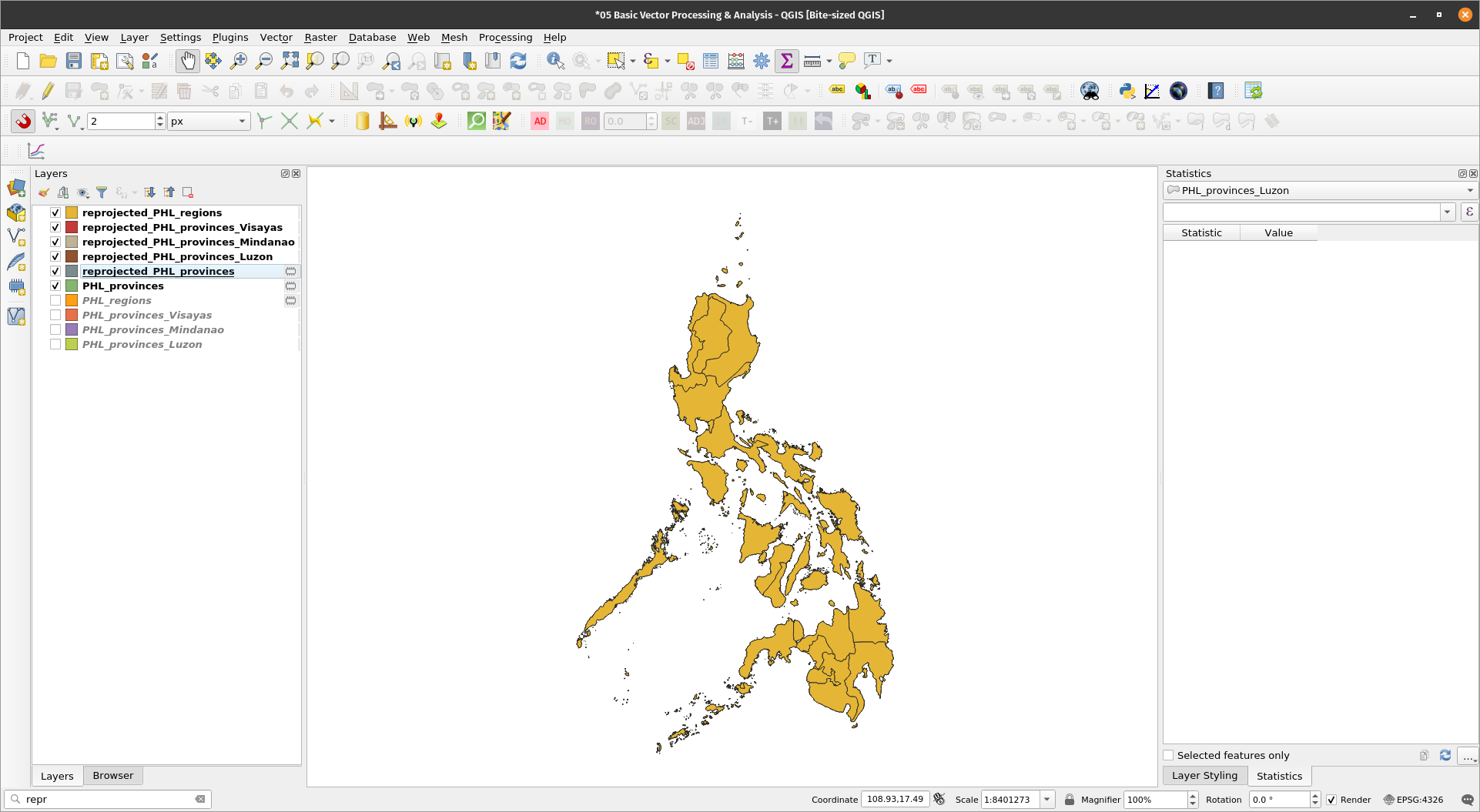
Reprojecting vectorsThere are several ways to reproject vectors in QGIS. The simplest is by exporting the layer and setting the new CRS there. Another way is by using the Reproject algorithm. Exercise 3: Reprojecting a vector from one CRS to another
NOTE: If you use the Locator Bar, be sure to select the option under Processing Algorithms instead of Edit Selected Features.
| |
| |
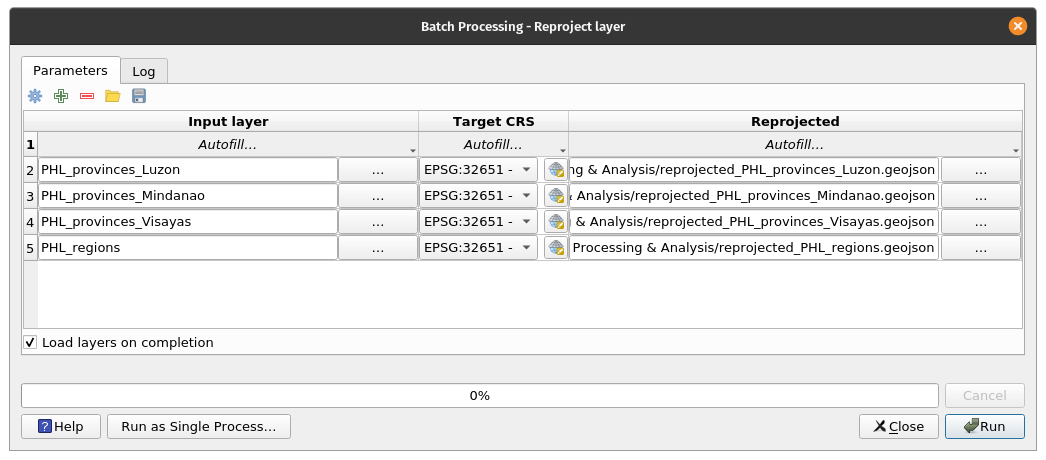
BONUS: The ability to perform batch processing is exposed for most processing algorithms. This option can normally be found in the lower left corner of a processing algorithm window. By clicking , we can run a processing algorithm for several inputs. The Batch Process window will allow users to add parameters for each run of the process. Try to reproject the remaining vector layers as a batch process. | |
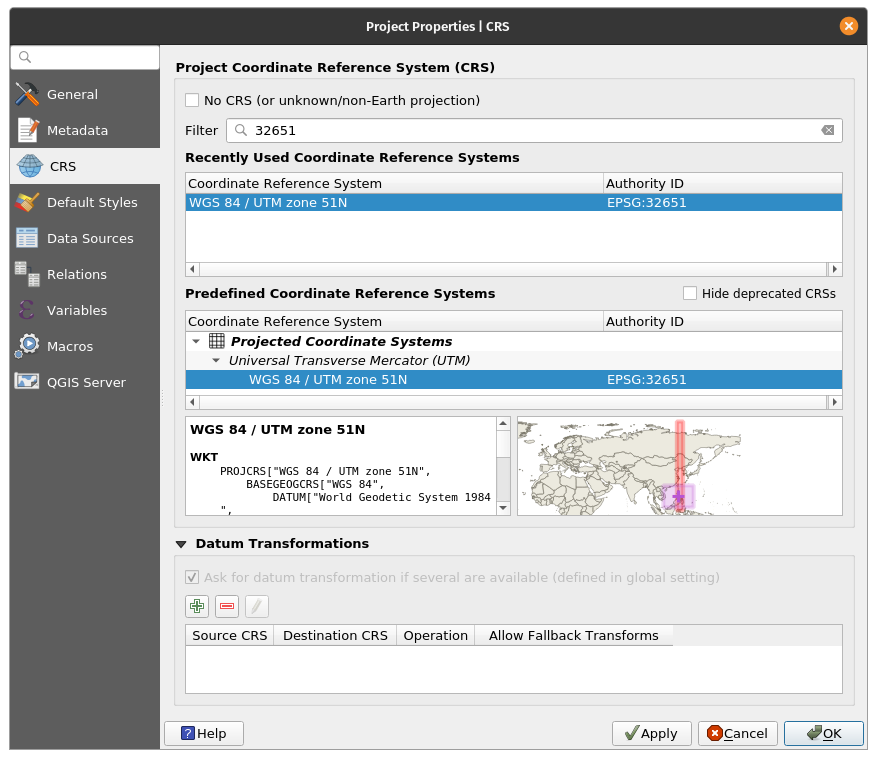
BONUS: Change the project CRS by clicking in the status bar found at the bottom right of the User Interface. Change the project CRS to EPSG:32651. | |
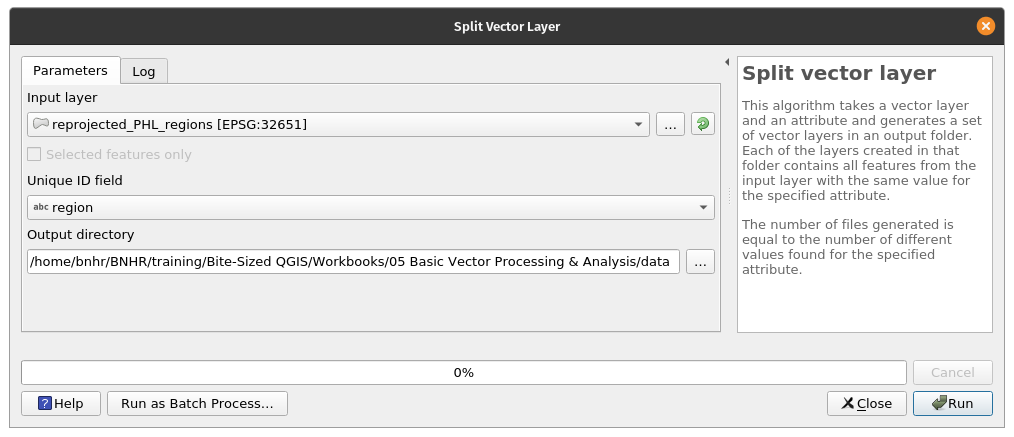
Splitting vectorsIf we can merge vectors, it’s only natural that we can split vectors as well. For this exercise, let’s split the reprojected_PHL_regions layer into individual region layers. Exercise 4: Splitting the regional polygon layer into individual region polygonsThe Split vector layer algorithm takes a vector layer and an attribute and generates a set of vector layers in an output folder. Each of the layers created in that folder contains all features from the input layer with the same value for the specified attribute. The number of files generated is equal to the number of different values found for the specified attribute. NOTE: This algorithm respects the default vector format settings under the Processing toolbar. The file format of the output (split) files will use the default vector format.
| |
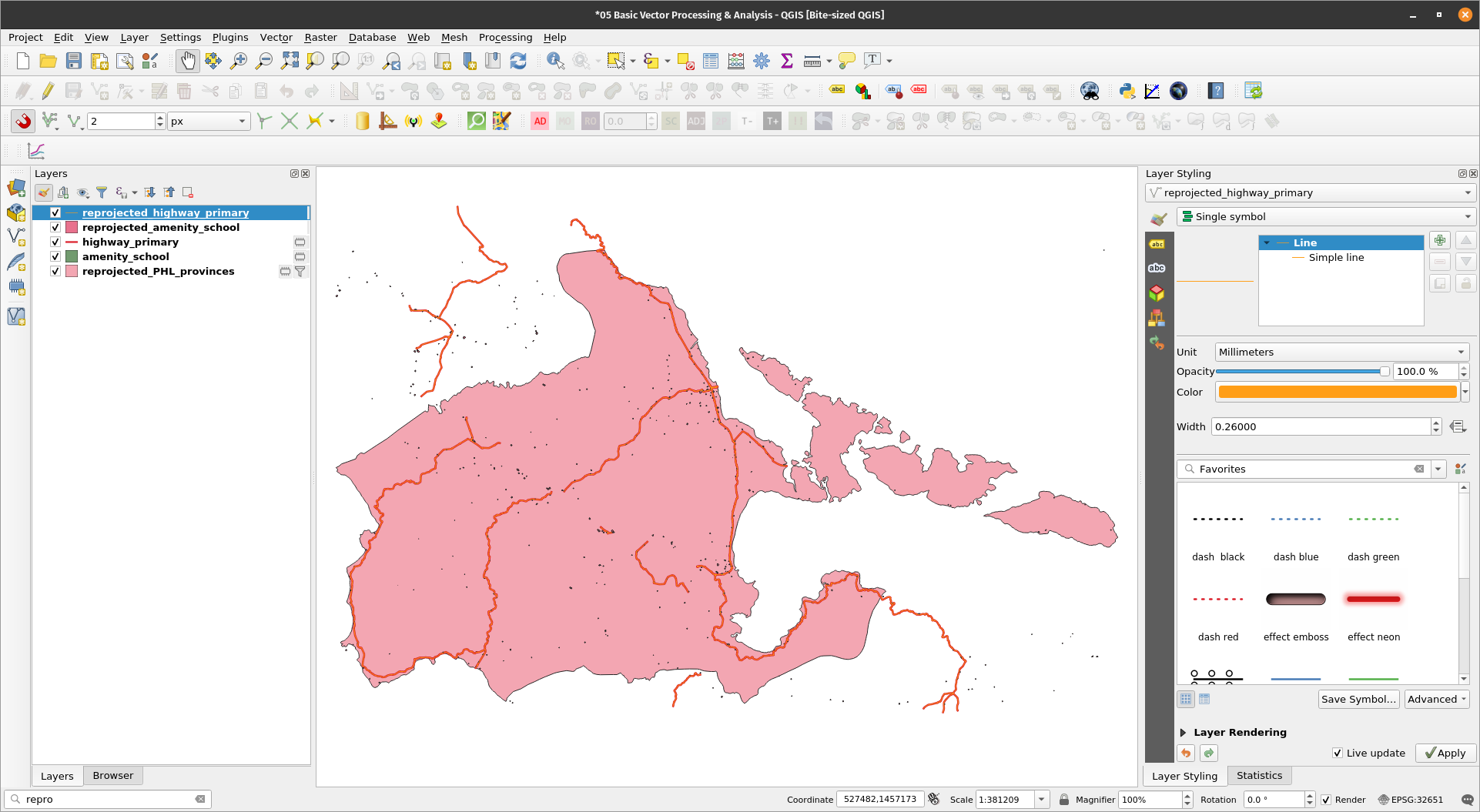
Loading vectors from OSMExercise 5: Load a primary roads and schools from OSM
| |
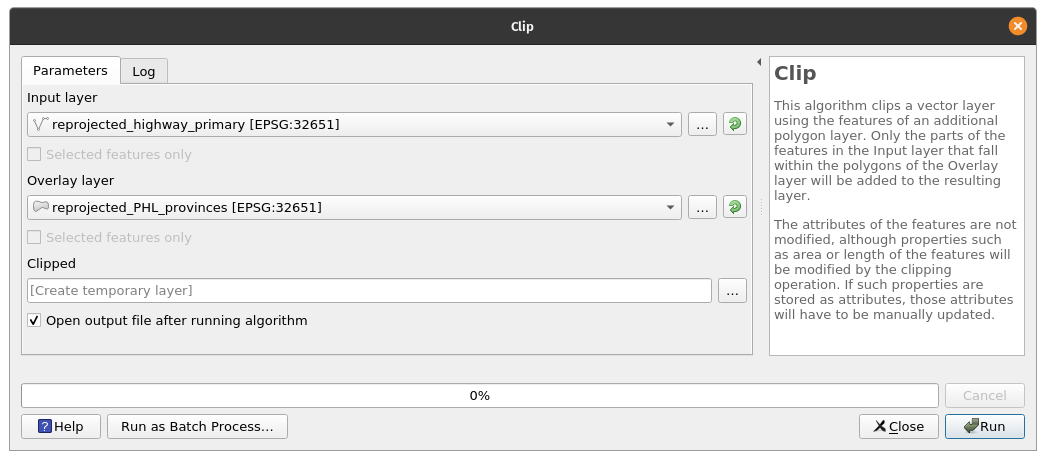
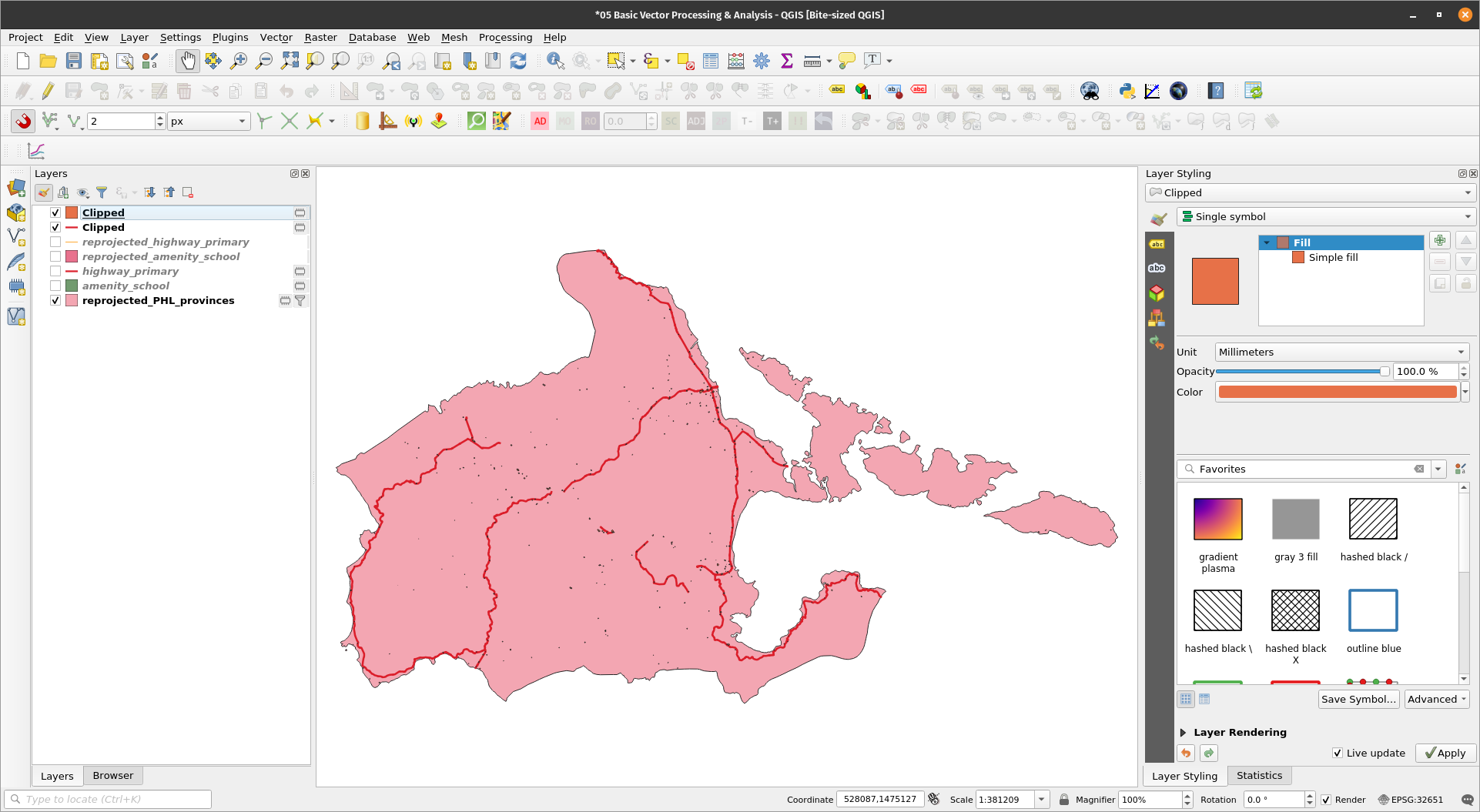
Clipping vectorsNotice that there are roads and schools located outside of the province of Albay. Since we only want the roads and schools inside the Albay feature, we can simply Clip the highway_primary and amenity_school layer with the reprojected_PHL_provinces layer. Exercise 6: Clipping the primary roads and schools vector to the province of AlbayThe Clip algorithm clips a vector layer using the features of another polygon layer. Only the parts of the features in the Input layer that fall within the polygons of the Overlay layer will be added to the resulting layer. The attributes of the features are not modified, although properties such as area or length of the features will be modified by the clipping operation. If such properties are stored as attributes, those attributes will have to be manually updated
| |
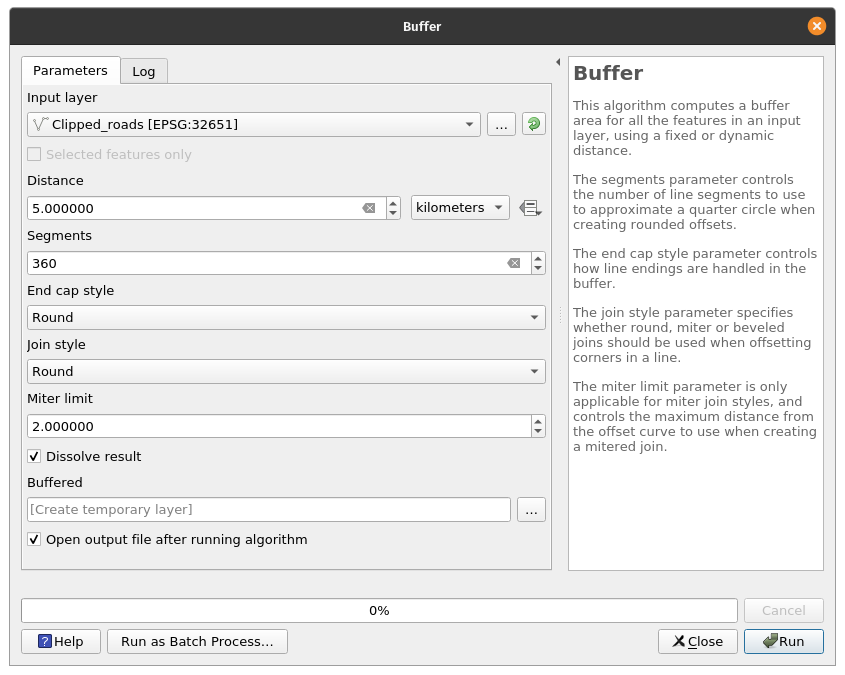
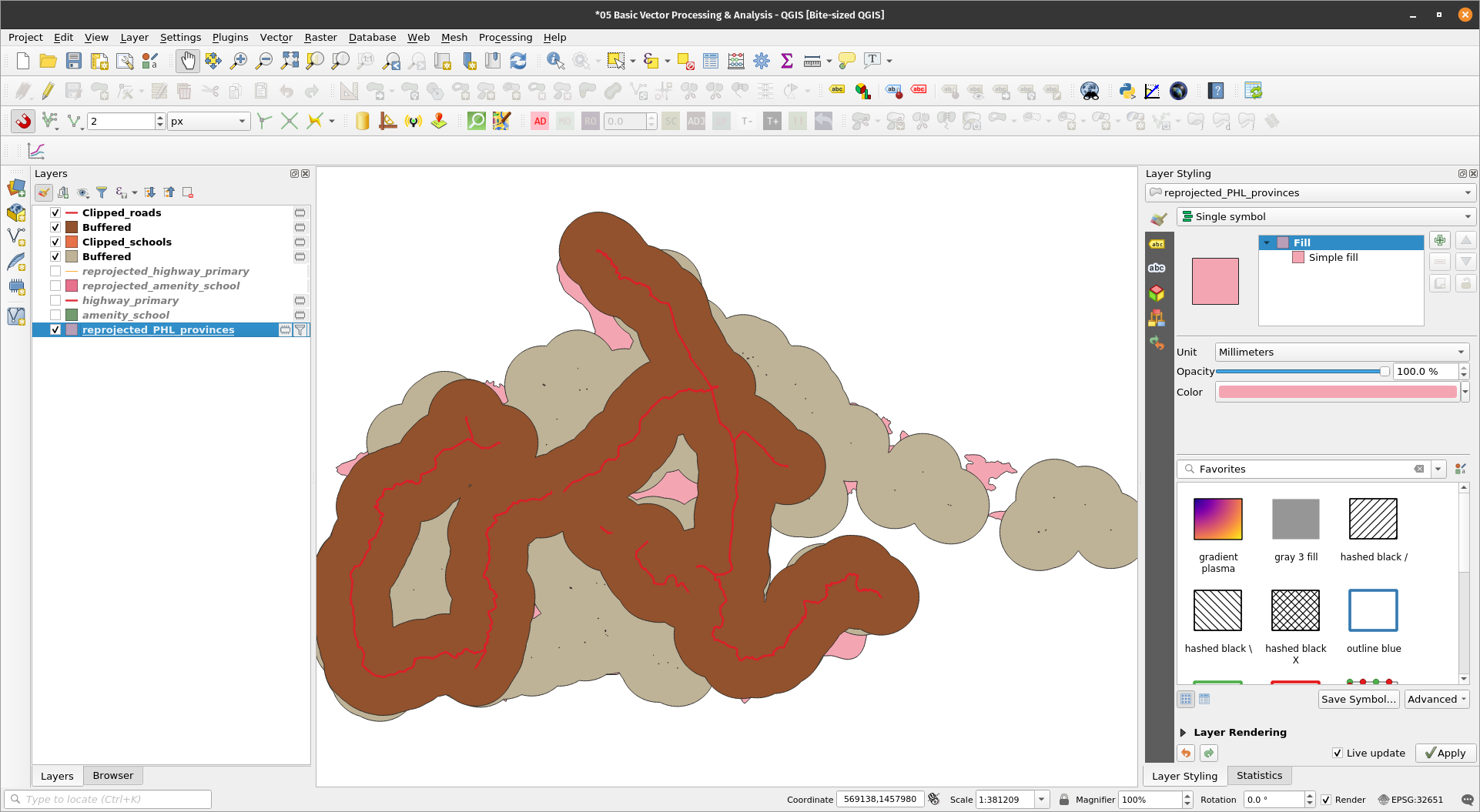
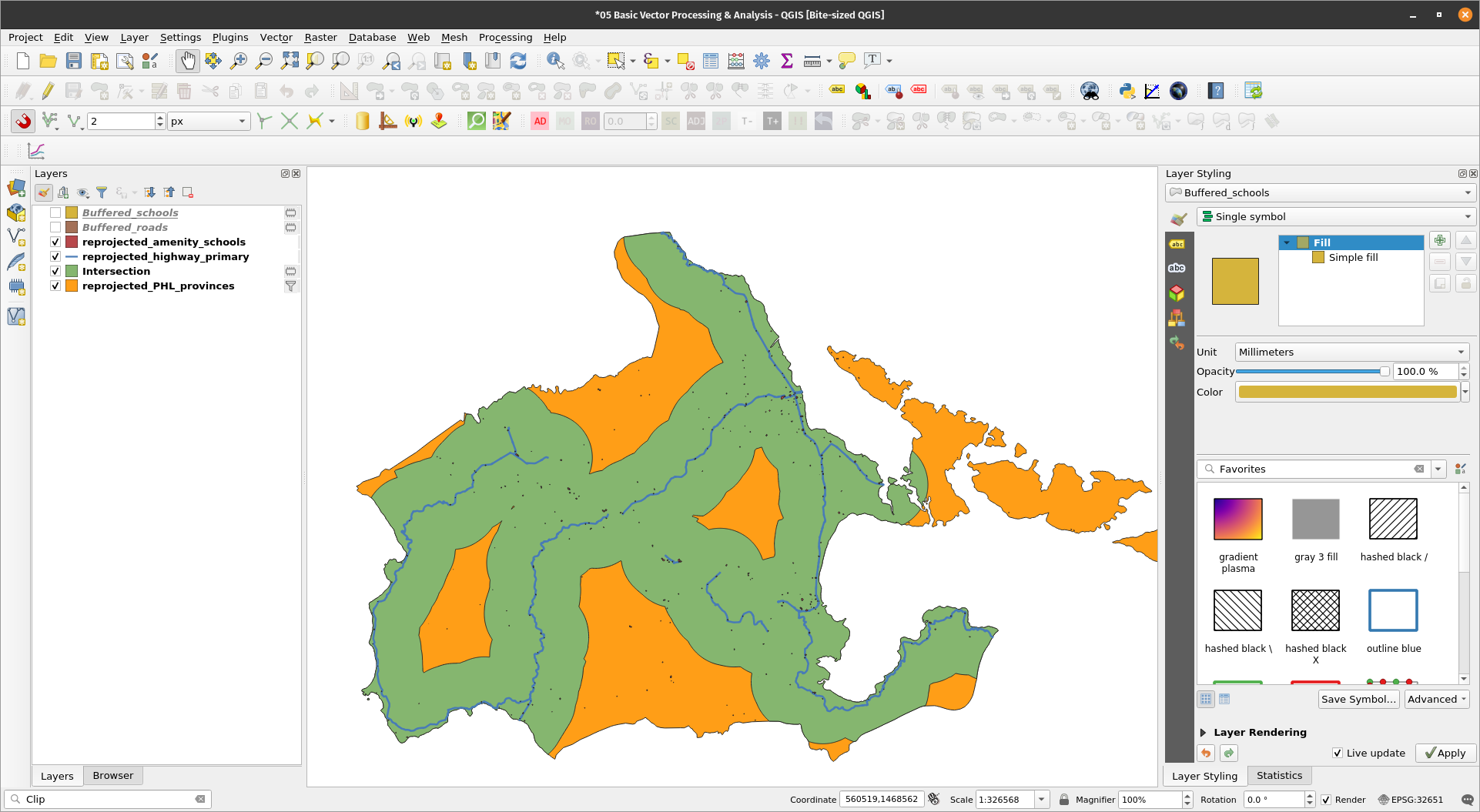
Creating buffersAnother common processing algorithm used are Buffers. This algorithm computes a buffer area for all the features in an input layer, using a fixed or dynamic distance. Buffers are an easy way to visualize nearness or inclusion of datasets. For example, we can try to find areas that are simultaneously within 5km of a road and 5km of a school by performing a buffer on the road and school layers and then running an intersection or clip algorithm on the resulting buffers. Exercise 7: Creating a 5km buffer around the schools and road layers
| |
| |
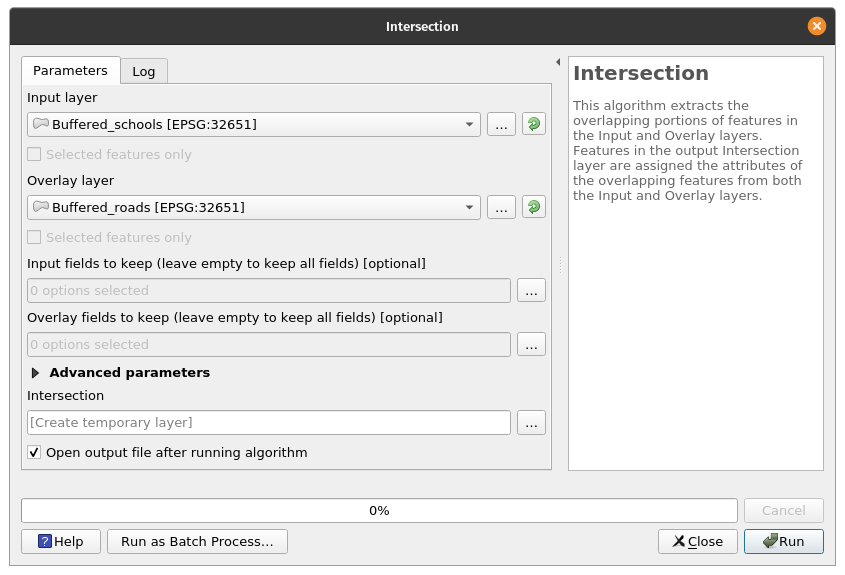
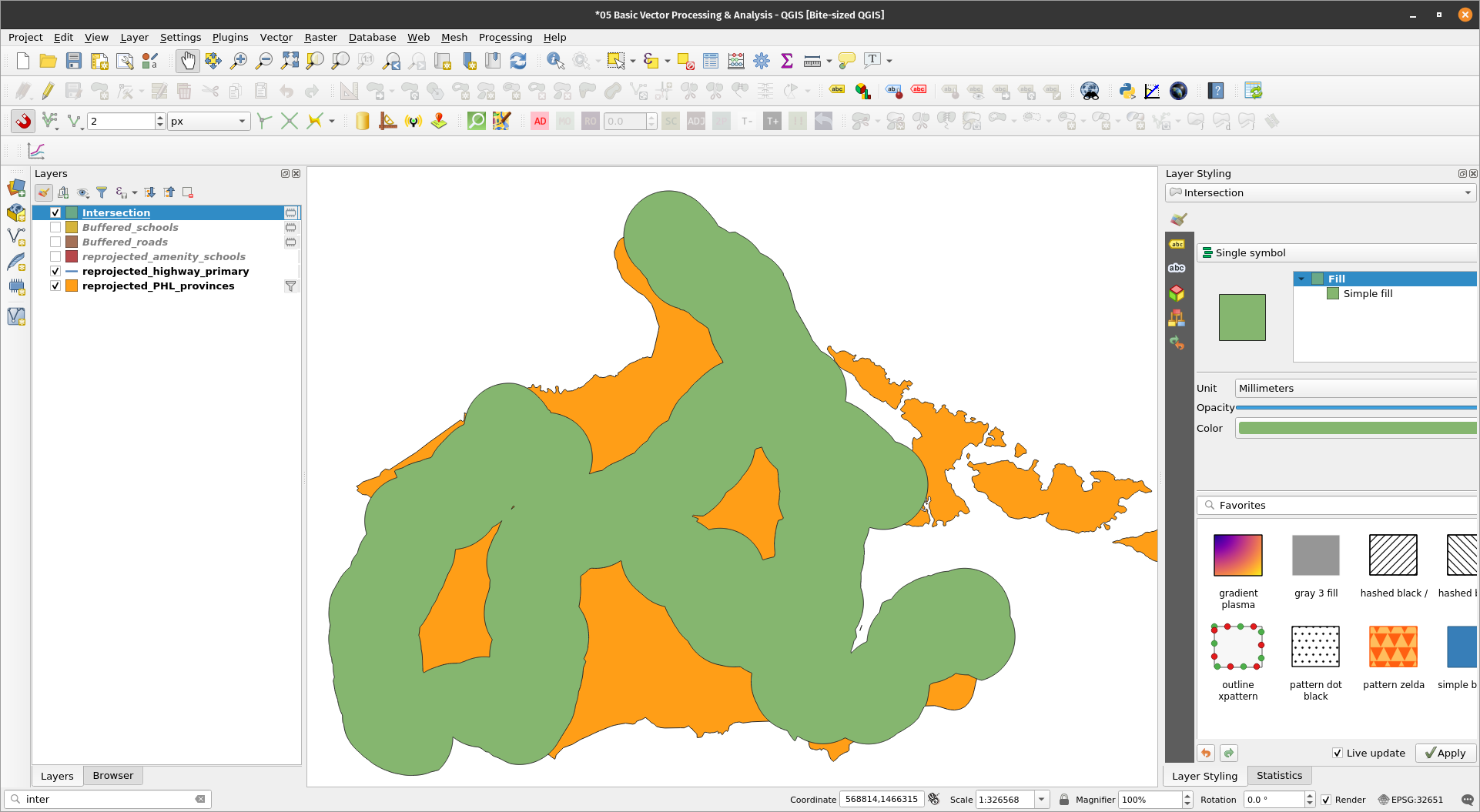
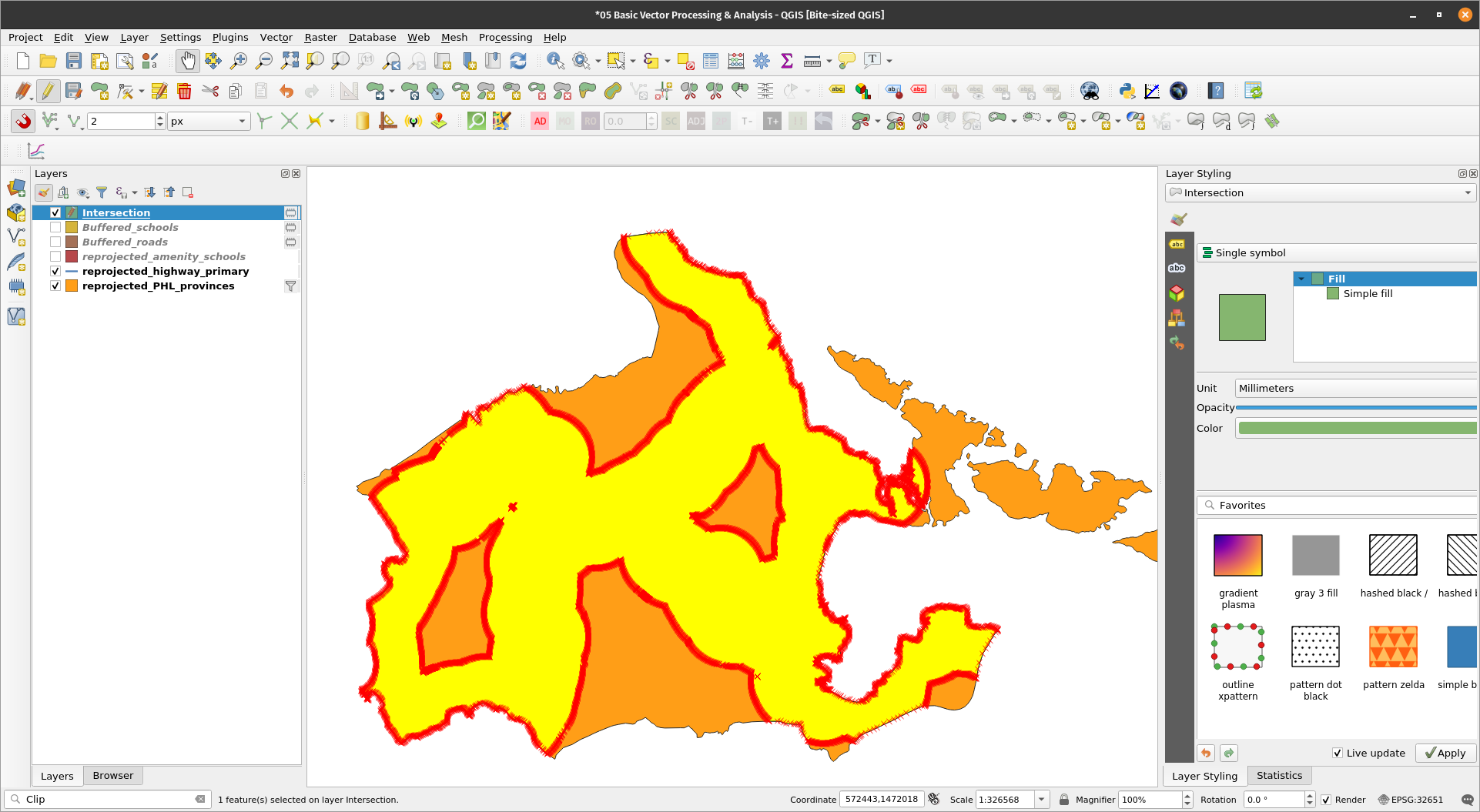
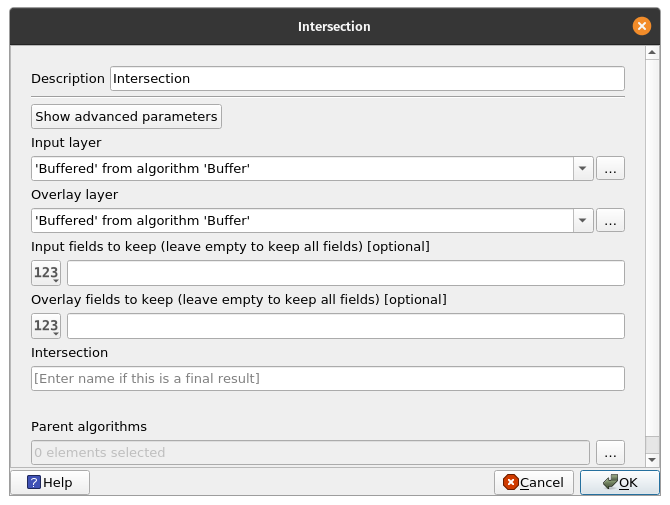
Intersecting vector layersNow that we know the areas that are 5km from each school and 5km from the roads. We can now find areas that are simultaneously within those two buffers by using the Intersection algorithm. BONUS: When to use Clip and when to use Intersection? Use a clip if you are only interested in the attributes of the base layer. Use Intersection if you want your output to have the attributes of the base layer and intersection layer. Exercise 8: Find areas within 5km of a POI and a road.The Intersection algorithm extracts the overlapping portions of features in the Input and Overlay layers. Features in the output Intersection layer are assigned the attributes of the overlapping features from both the Input and Overlay layers.
| |
| |
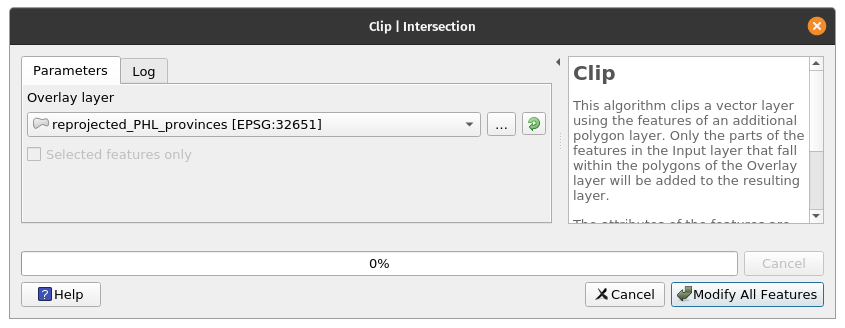
BONUS: Notice that there are areas that go beyond the boundaries of the province? What if I want to include only the areas within the province? We can perform another Intersection between the Intersection layer and the reprojected_PHL_provinces layer. For certain vector algorithms, QGIS allows for in-place editing. This means that the algorithm will not create a new output but edit the input layer instead.
| |
| |
These are now the areas within Albay that are both within 5km of a primary road and a school. | |
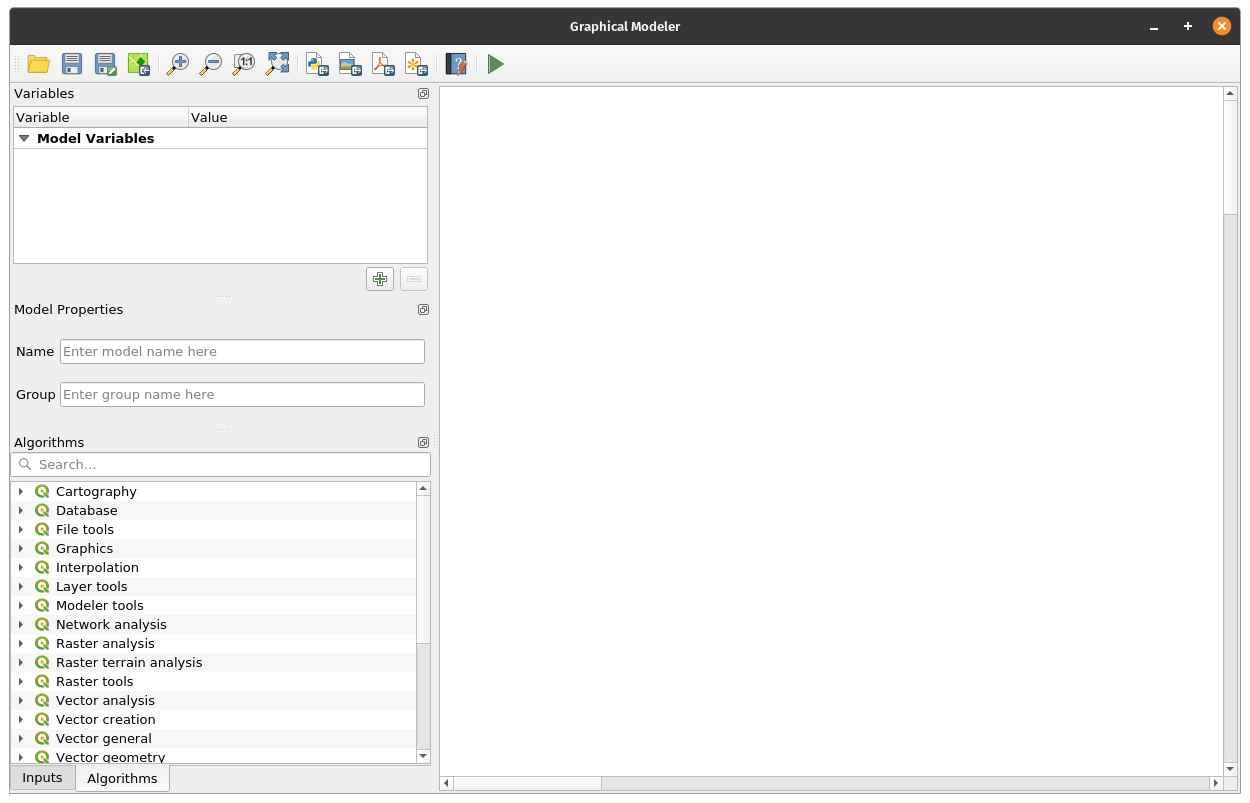
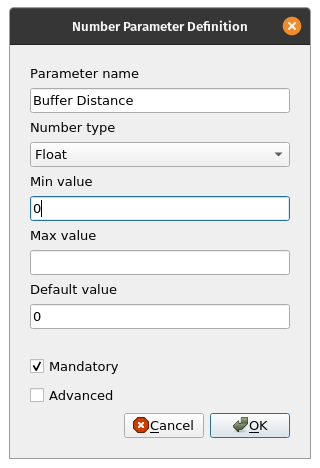
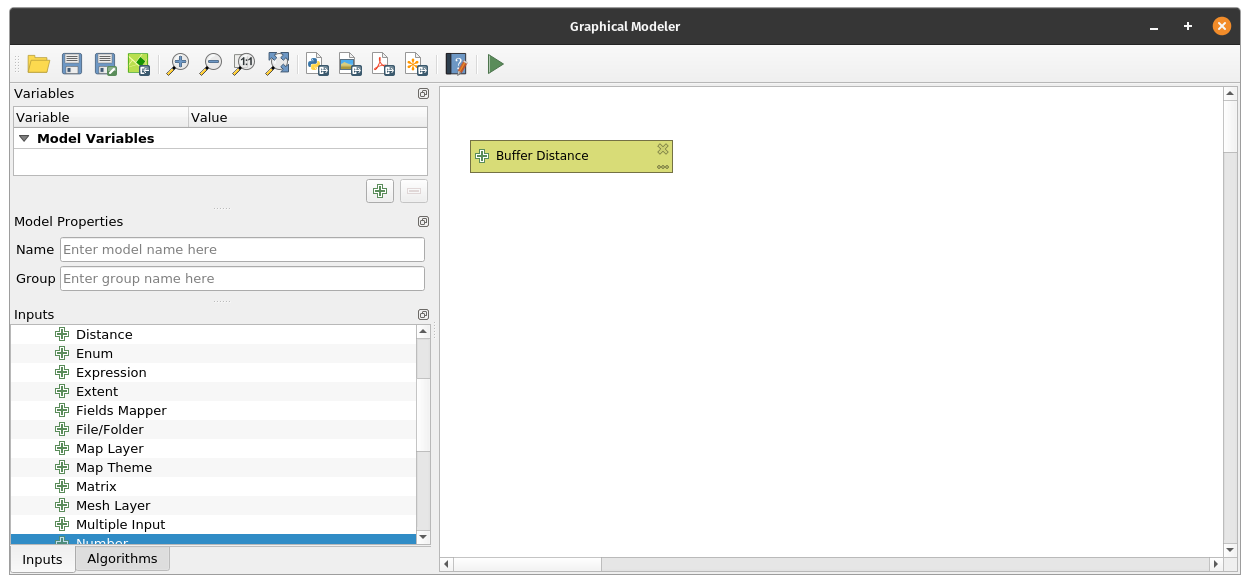
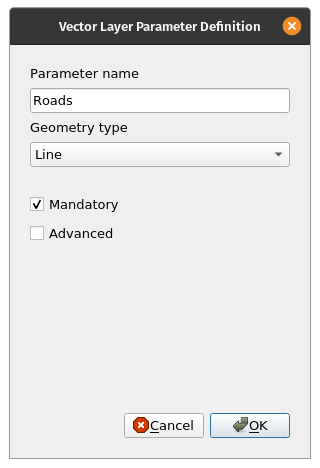
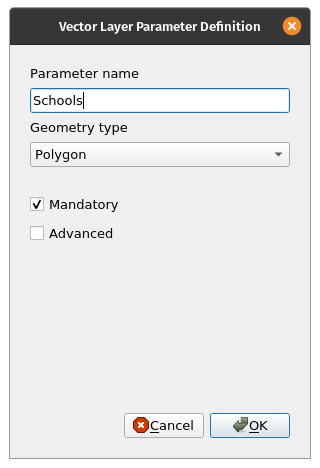
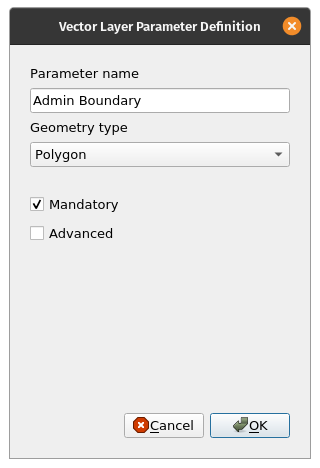
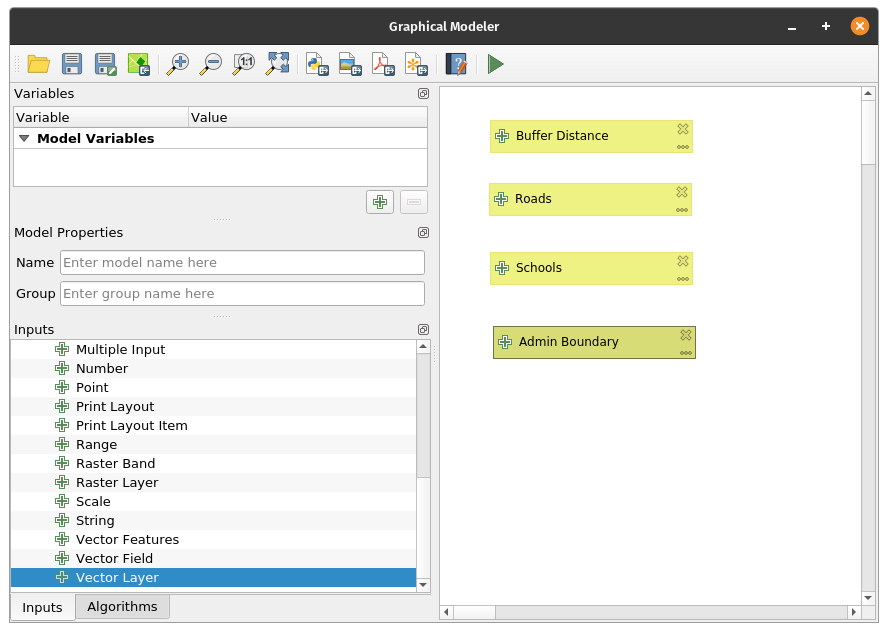
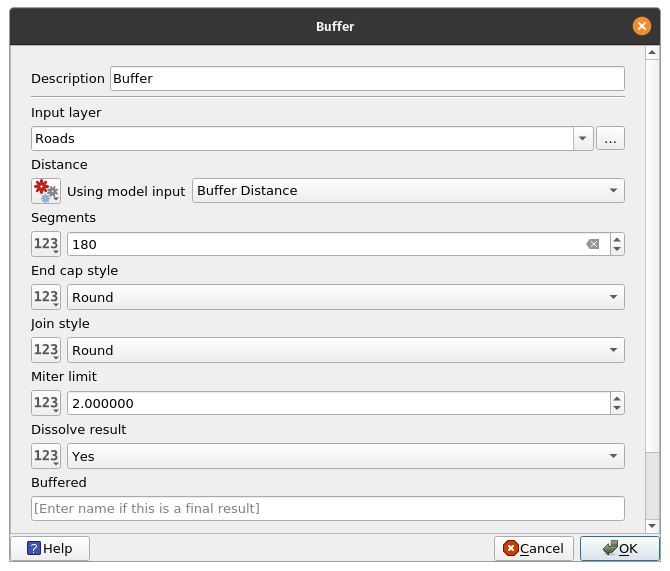
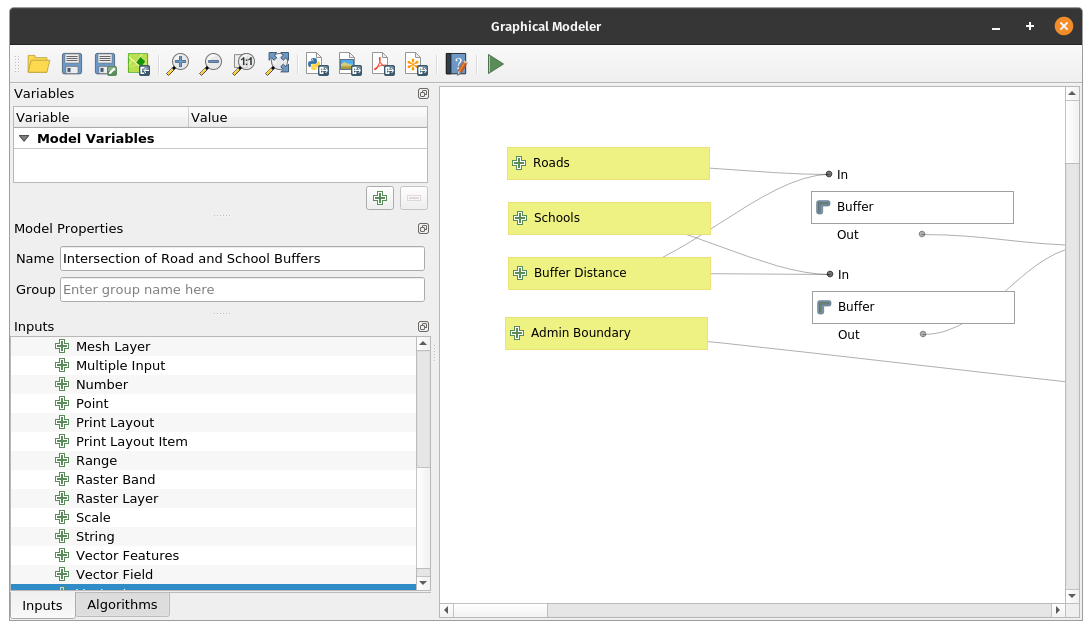
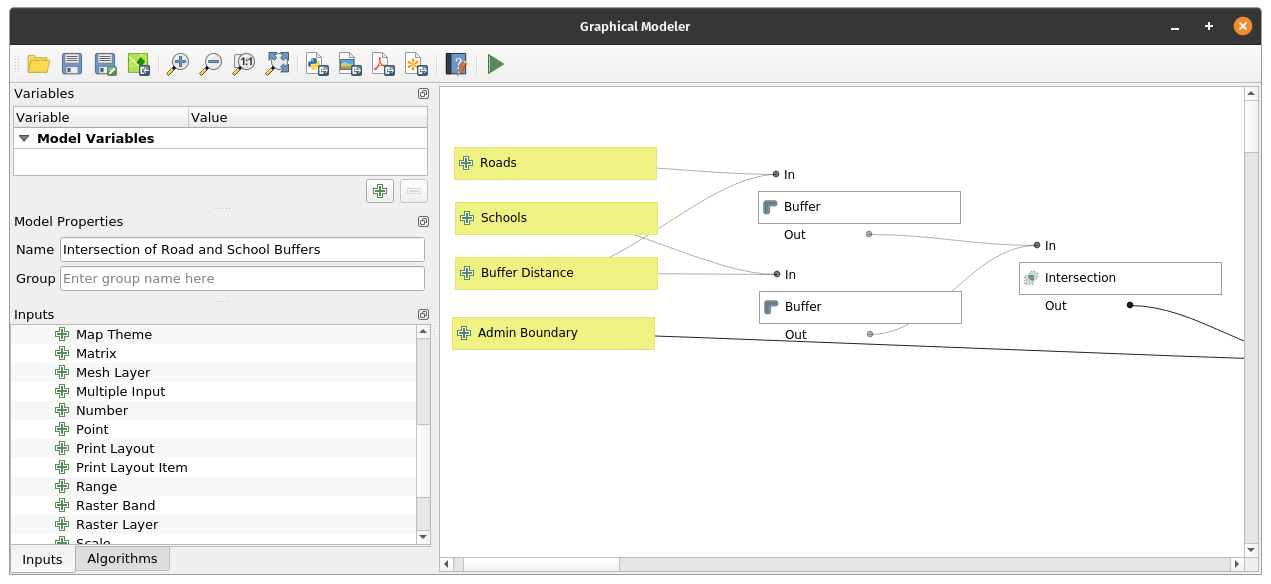
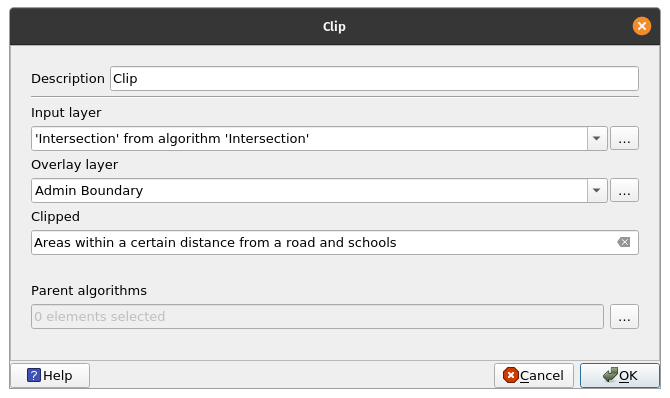
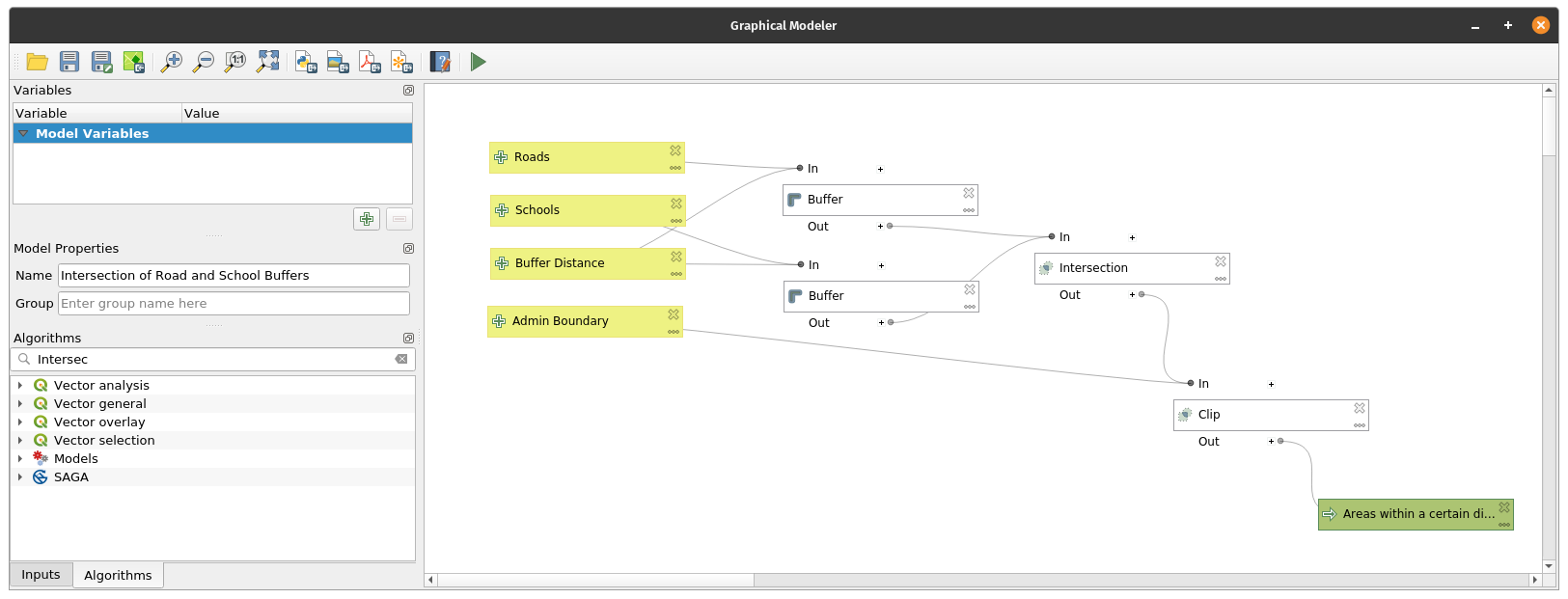
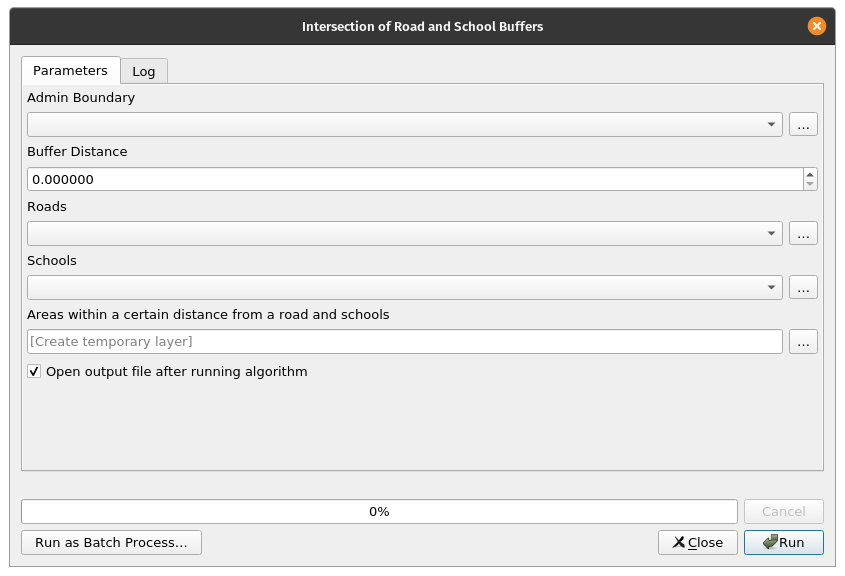
QGIS has a powerful graphical modeler that allows you to create reusable and shareable models. These models can also be converted into Python scripts easily. One of the advantages of using models is that we can easily change inputs and variables without needing to run the algorithms multiple times. For example, let’s create a simple model of our process for getting the areas within a province that are a certain area from roads and schools. Exercise 9: Creating a simple model with the graphical modeler
| |
| |
| |
| |
| |
| |
| |
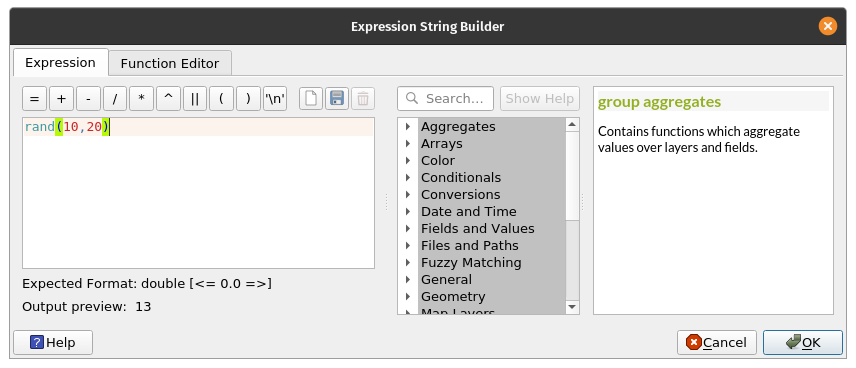
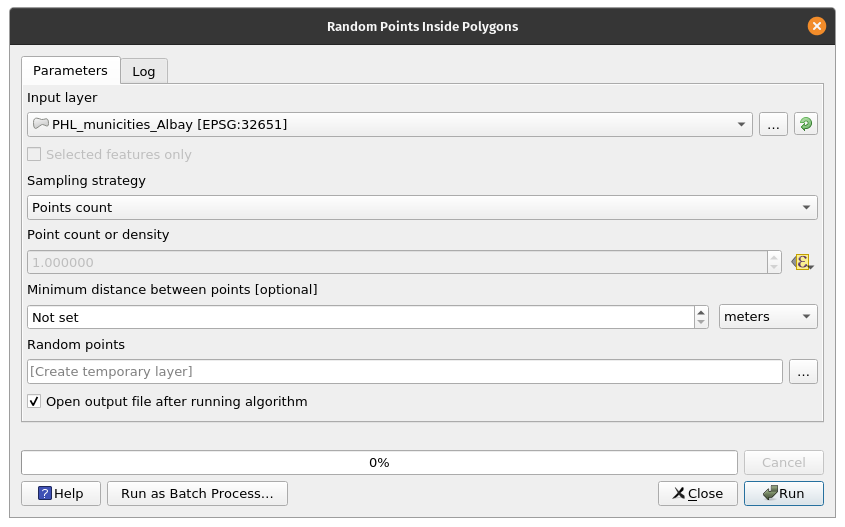
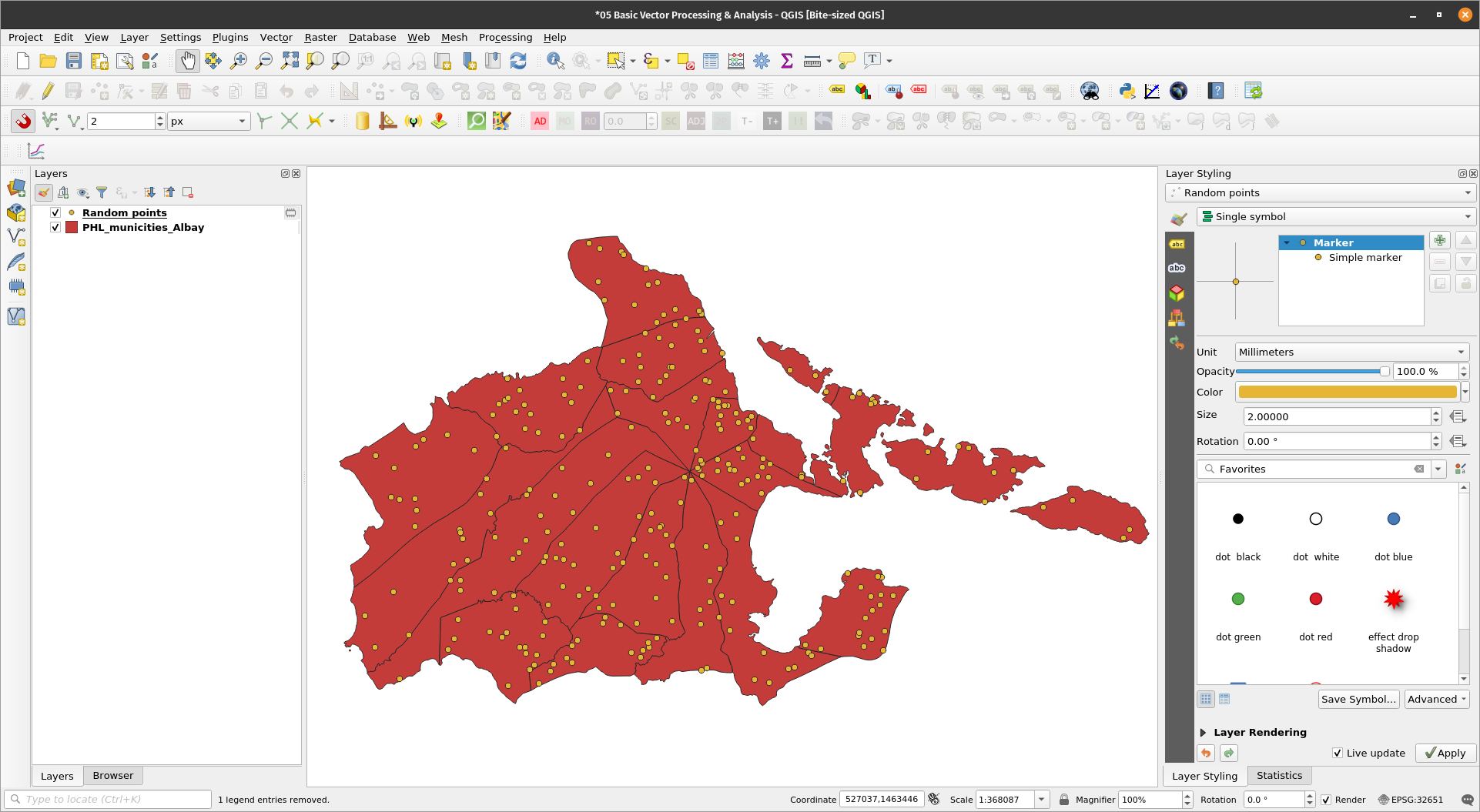
Generating random points inside polygonsExercise 10: Generate random points inside the PHL_municities_Albay layerThe Random Points Inside Polygon algorithm allows users to generate random points inside polygons. The number of points can be set by a point count or point density value. This value, as with other algorithm parameters, can be defined by a data-defined override.
| |
| |
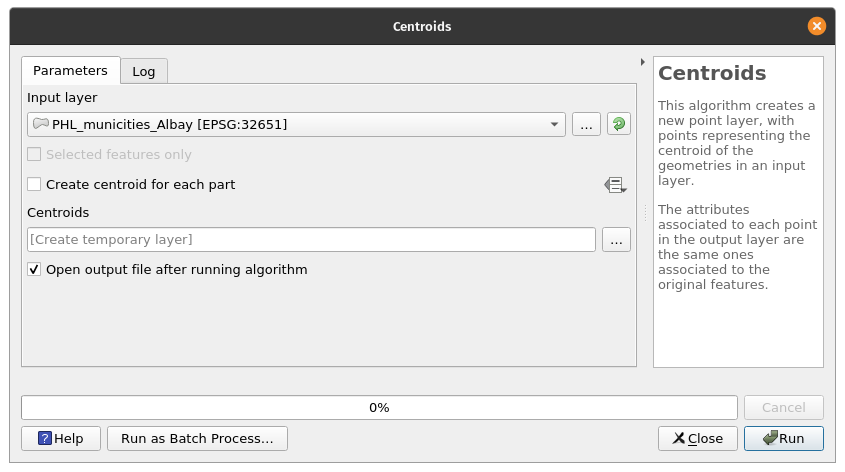
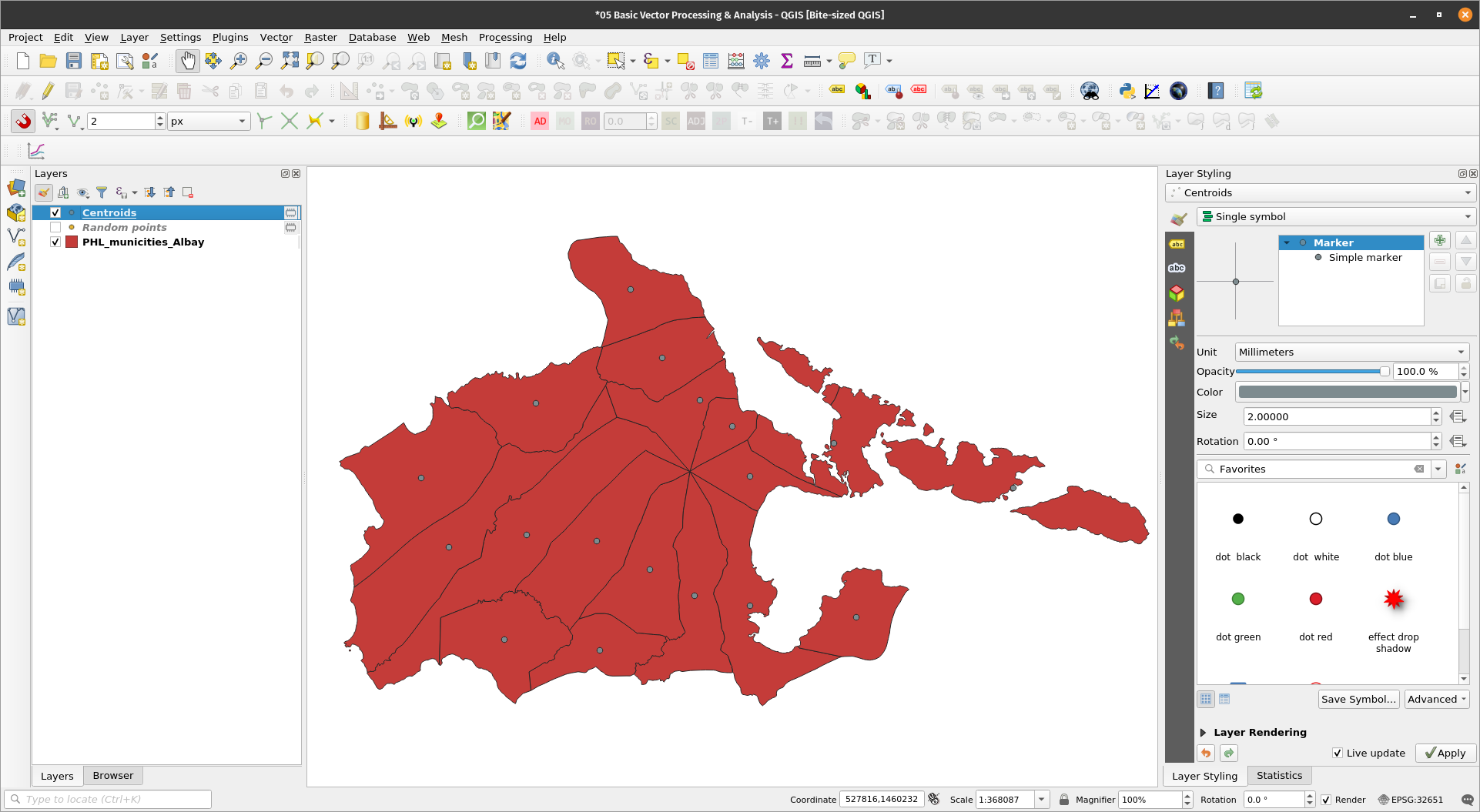
Getting centroidsExercise 11: Create a centroid layer of the PHL_municities_Albay layerThe Centroids algorithm creates a new point layer, with points representing the centroid of the geometries in an input layer. The attributes associated with each point in the output layer are the same ones associated with the original features.
| |
| |
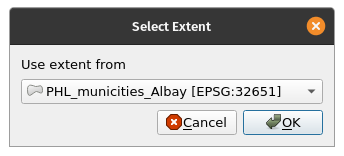
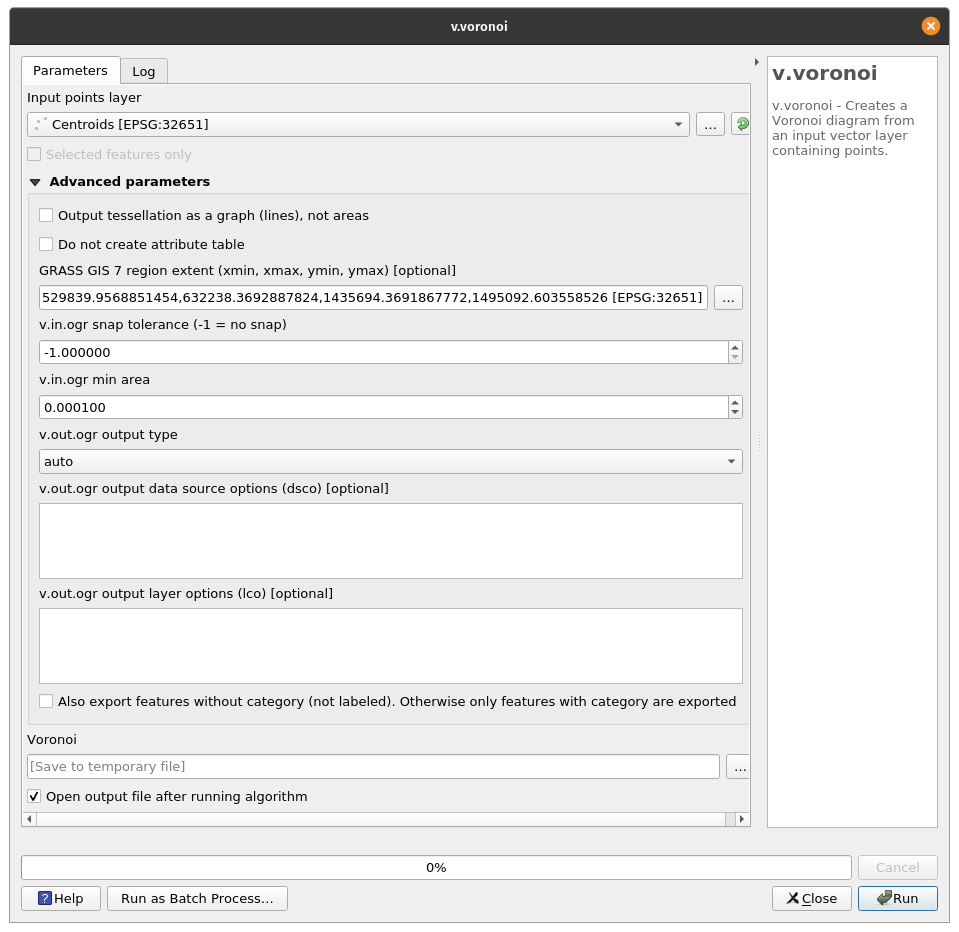
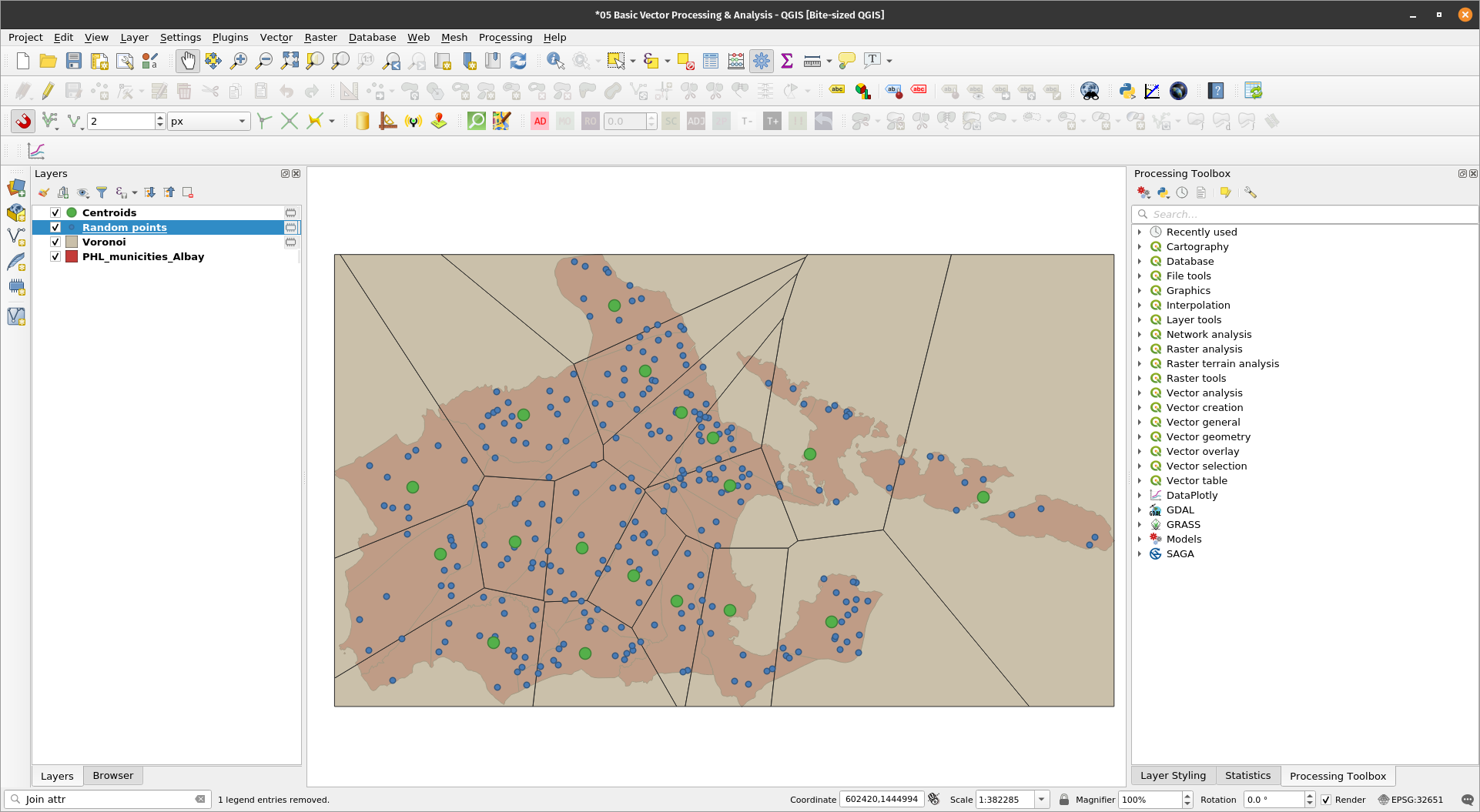
Find the points from one layer that are nearest to each point from another layerExercise 12: Voronoi polygonsAside from QGIS processing algorithms, QGIS also has access to algorithms from processing providers connected to it. These include GRASS, SAGA, Orfeo Toolbox, TauDEM, LASTools, etc. For this exercise, we’ll use the v.voronoi algorithm from GRASS GIS to generate voronoi polygons from the Centroids we generated earlier. Voronoi polygons are generated from points. If a point is inside a voronoi polygon, it means that it is nearest to the generating point of that polygon than all generating points. A possible use case of voronoi or Thiessen polygons is finding the closest cell tower to a user given the location of cell towers. For our exercise, we can use voronoi polygons to determine the random points that are closest to our city/municipality centroids.
| |
| |
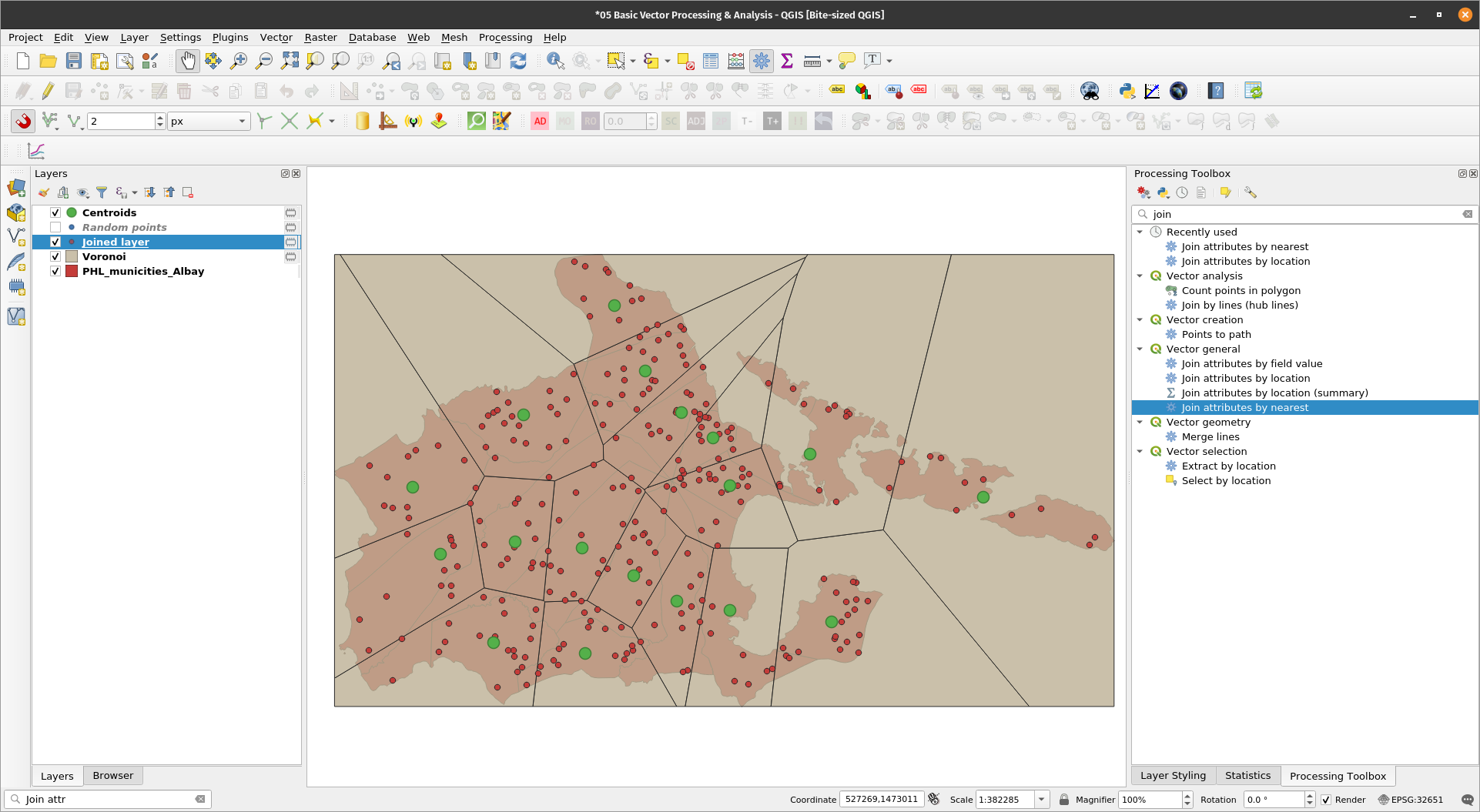
The resulting Voronoi layer contains the same attributes as the input point layer (Centroids). We can then use the join attributes by location on the Random Points and Voronoi layer to determine which City/Municipality centroid the point in the former is closest to. | |
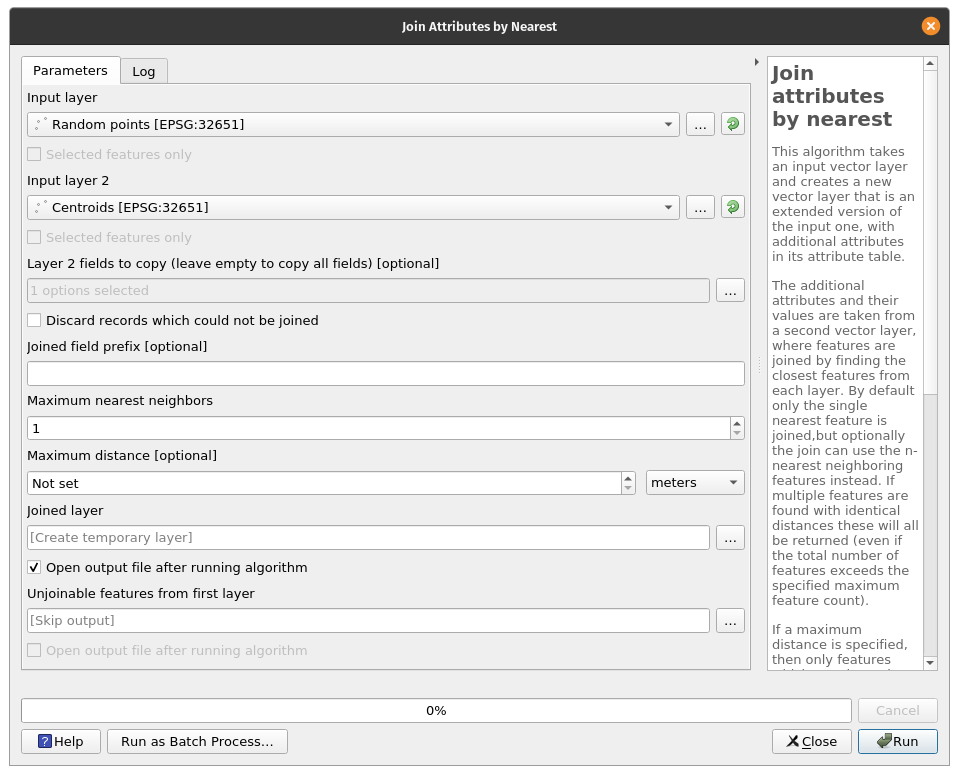
Exercise 13: Join attributes by nearestQGIS also has a built-in algorithm to Join attributes by nearest. This algorithm takes an input vector layer and creates a new vector layer that is an extended version of the input one, with additional attributes in its attribute table. The additional attributes and their values are taken from a second vector layer, where features are joined by finding the closest features from each layer. By default only the single nearest feature is joined,but optionally the join can use the n-nearest neighboring features instead. If multiple features are found with identical distances these will all be returned (even if the total number of features exceeds the specified maximum feature count).
| |
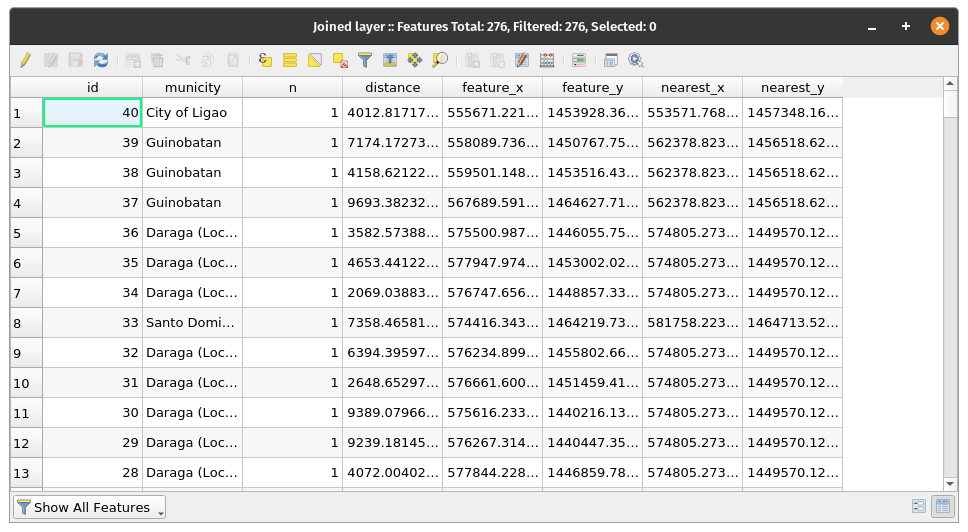
The attributes of this Joined layer includes the attributes from the Input layer (Random points), the attribute copied from Input layer 2 (Centroids), new attributes for the distance to the near features (distance), the index of the feature (n), and the coordinates of the closest point on the input feature (feature_x, feature_y) to the matched nearest feature, and the coordinates of the closet point on the matched feature (nearest_x, nearest_y). | |
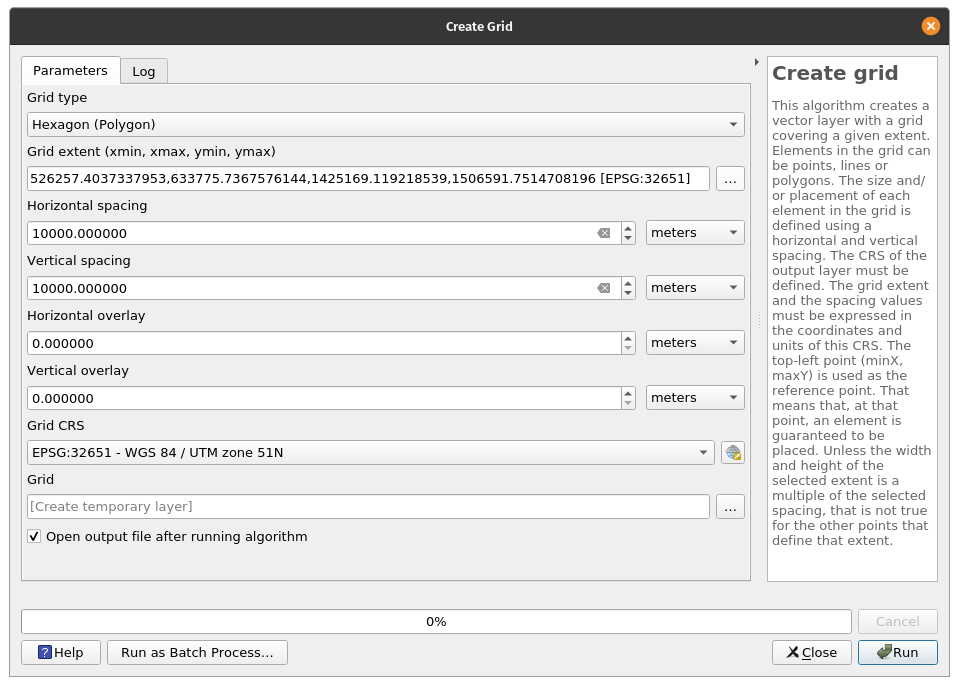
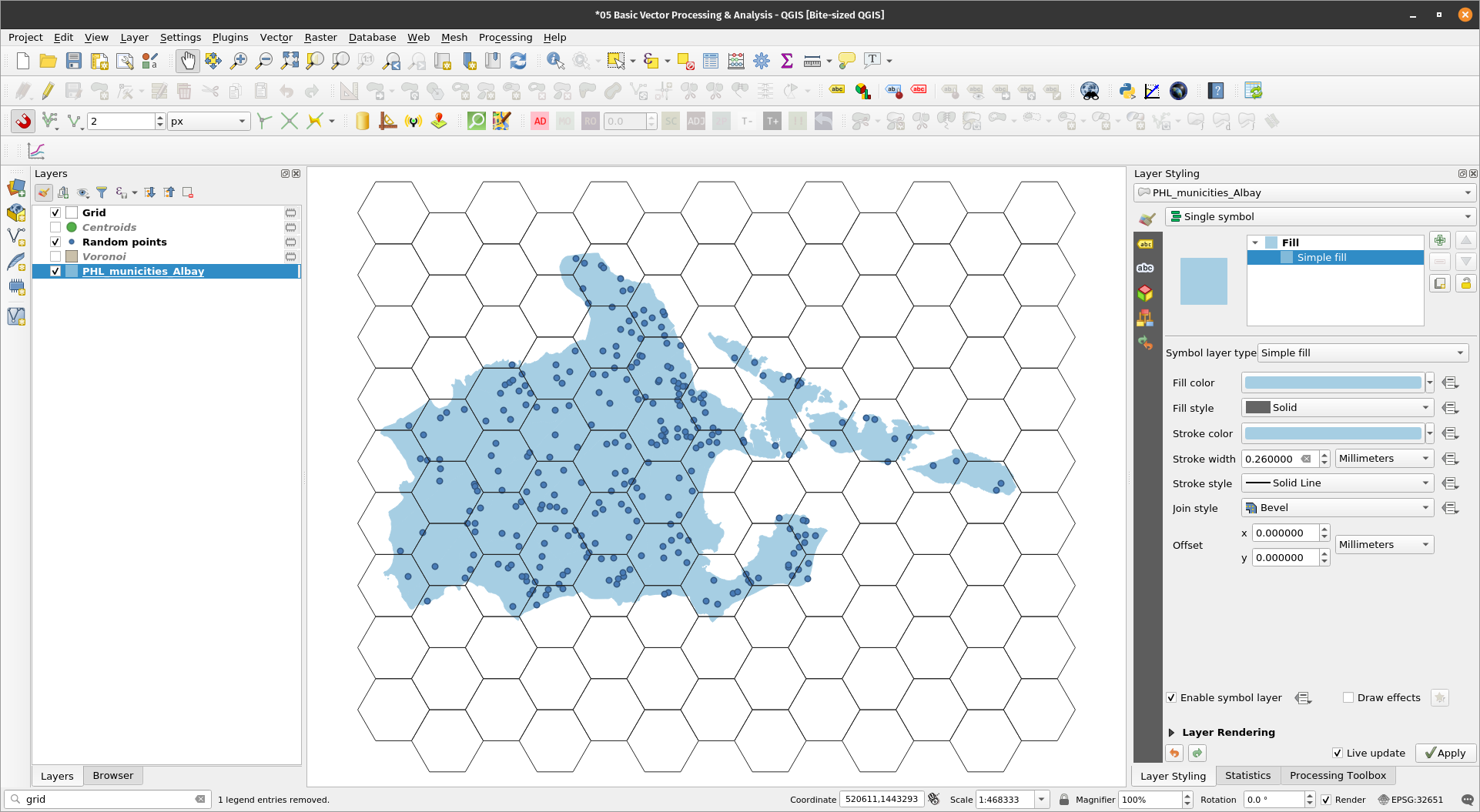
Creating gridsExercise 14: Generating grids in QGISQGIS also has an algorithm to generate grids. These grids can be made up of points, squares, diamonds, or hexagons. In this exercise, let’s create a hex grid -- a very common and popular means of visualizing data.
| |
| |
You can then use this grid for other processing and analysis (e.g. zonal statistics, counting points in polygon, summarizing per grid, etc.) | |
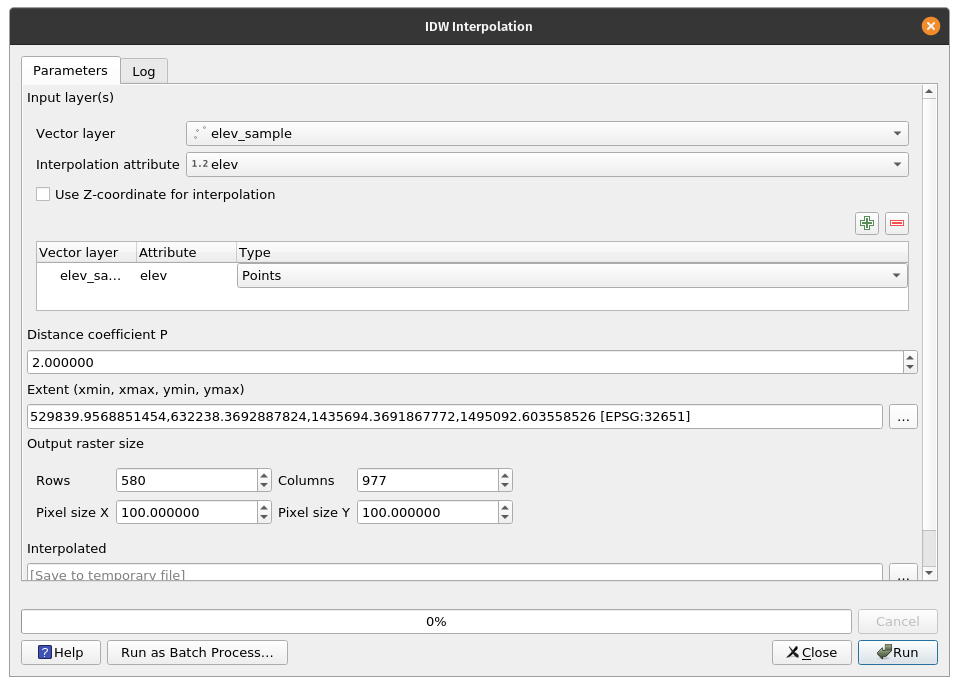
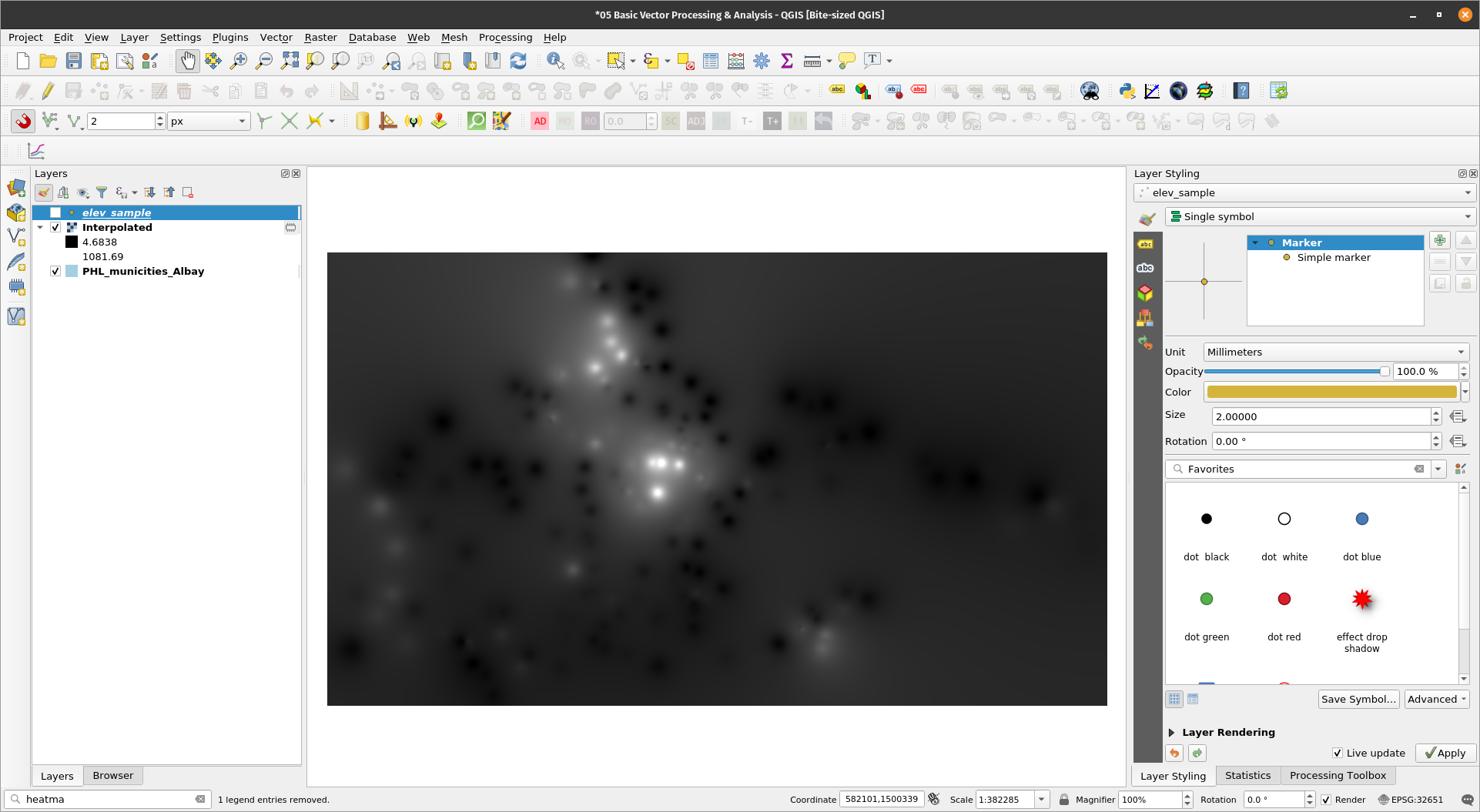
There are several interpolation methods available to QGIS -- IDW, Regularized Spline with Tension, etc. These are available as core QGIS processing algorithms or via GRASS, SAGA, and other external processing providers. Exercise 15: IDW Interpolation
| |
| |
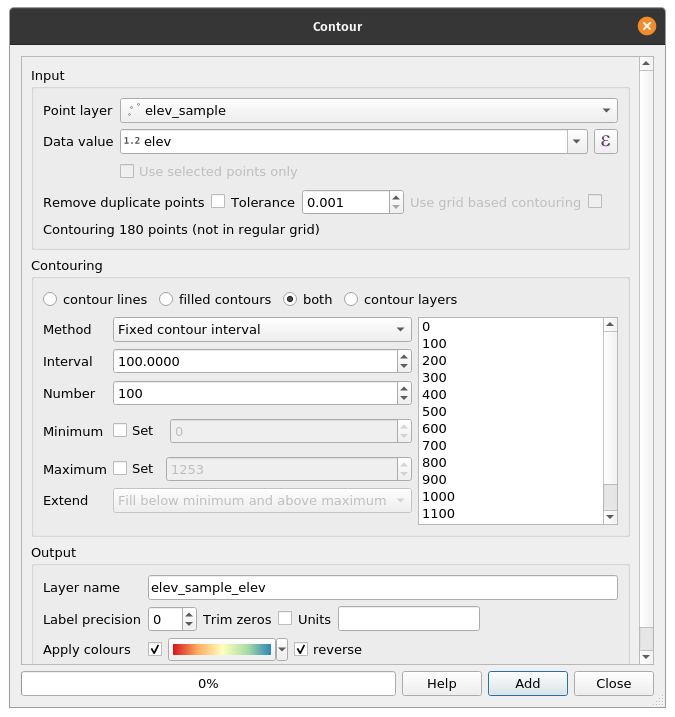
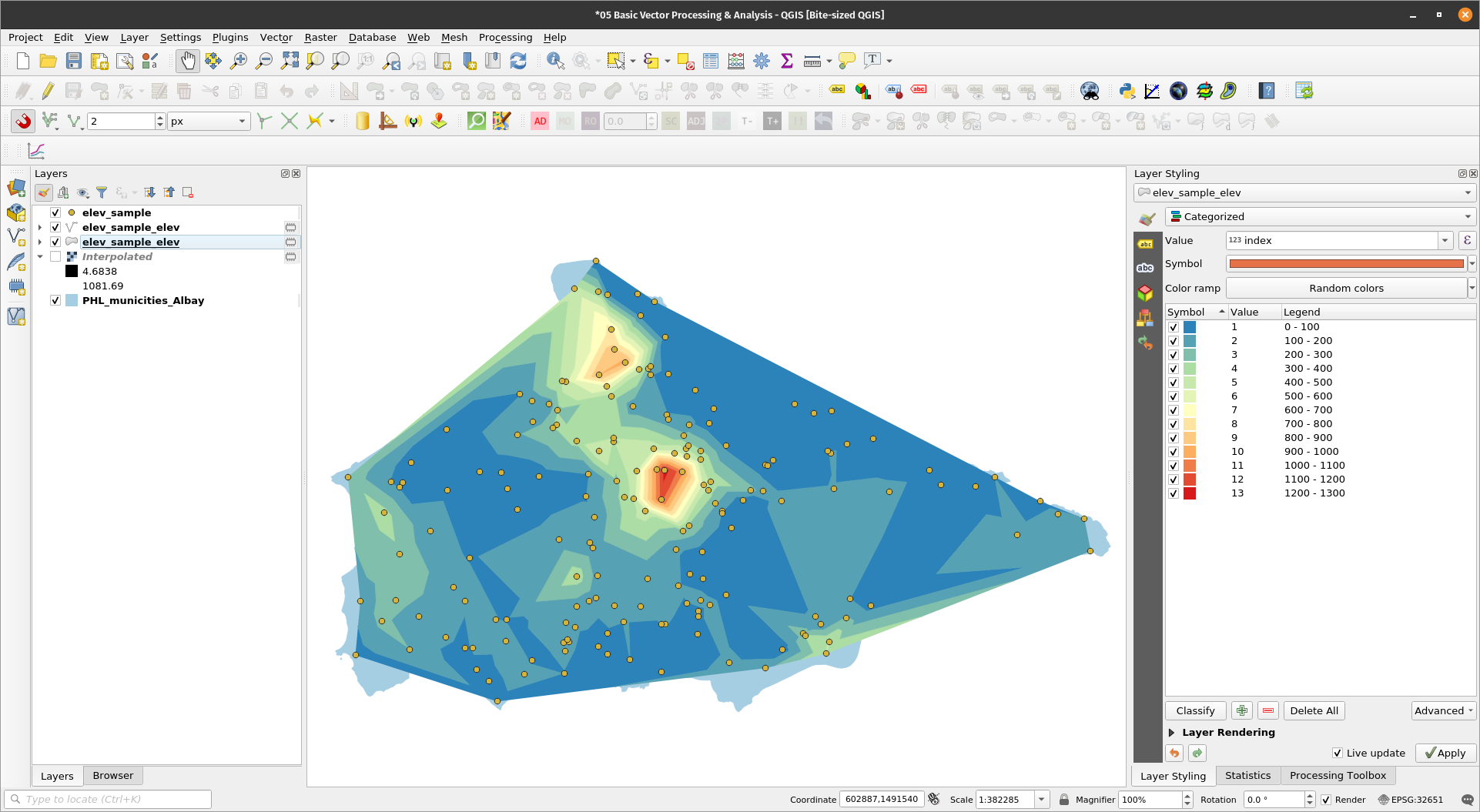
Exercise 16: Contours from pointsContours can be generated from a set of points by using the Contour plugin .
| |
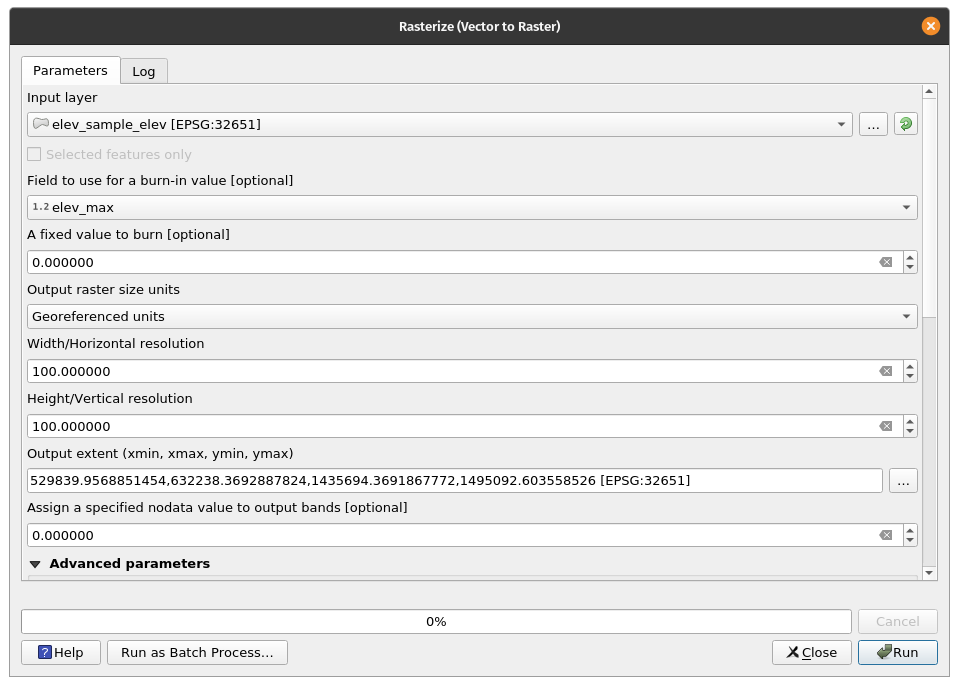
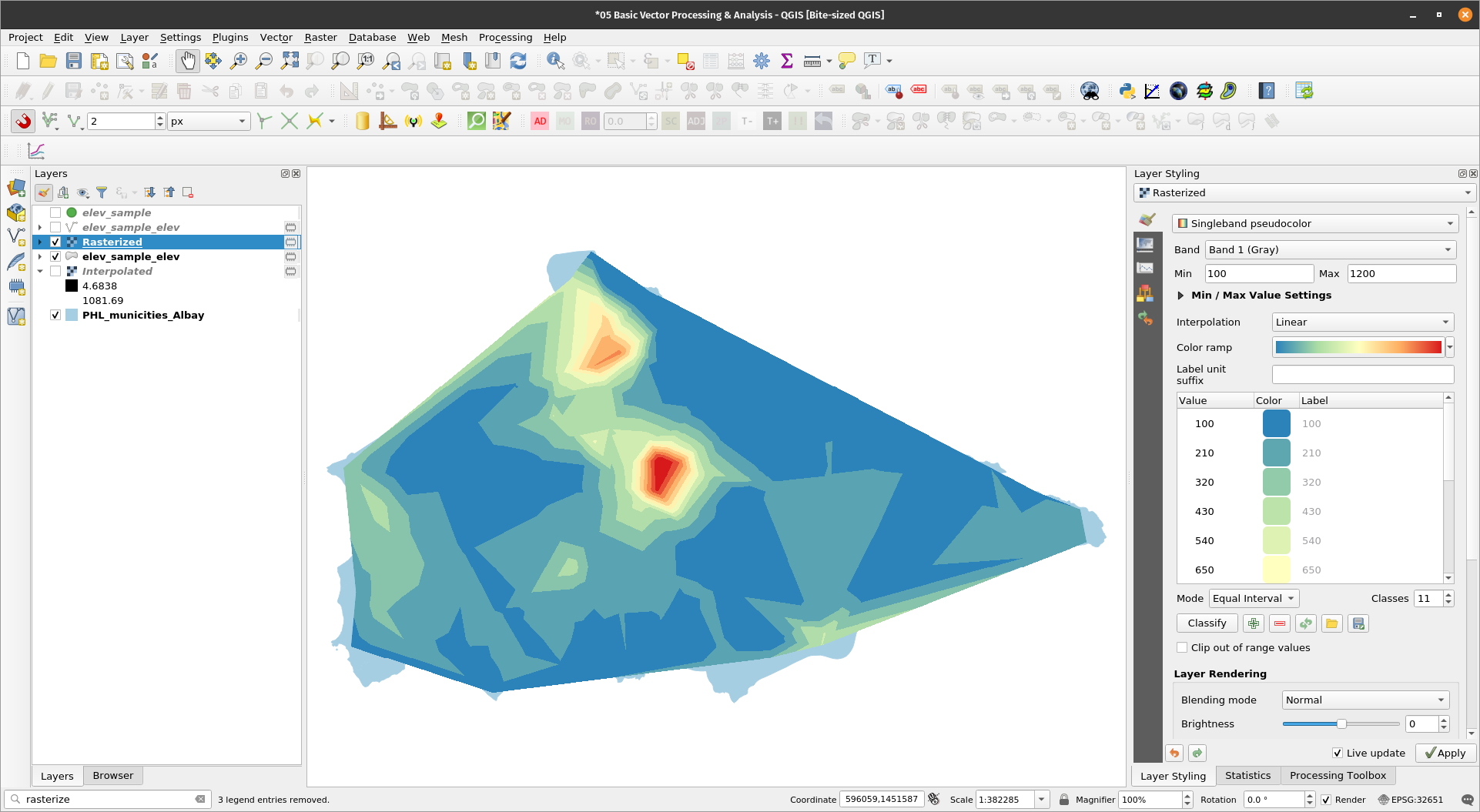
Sometimes we need to convert vectors to rasters and vice versa. Exercise 17: Converting the contour polygon to a raster
| |
| |
This work and its contents by Ben Hur S. Pintor is licensed under a Creative Commons Attribution-NonCommercial-ShareAlike 4.0 International License. |